People & HR
Employee records, self-service logins, departments, the org chart and leave.
In this guide, and all guides
Add employees
- In the app
- HR, then Workforce, then Employees
- Who
- Super Admin
- Payroll Manager
- Accountant
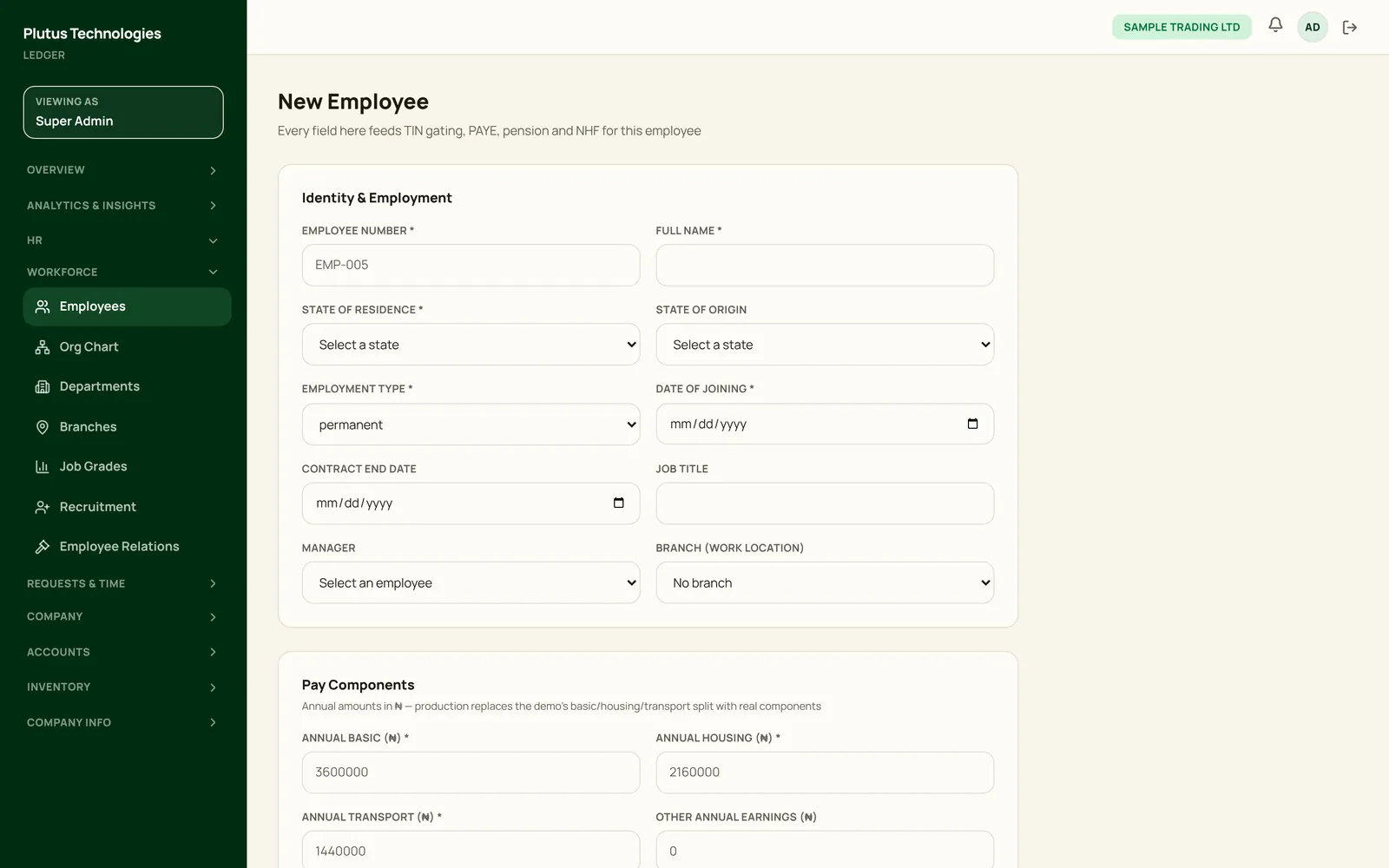
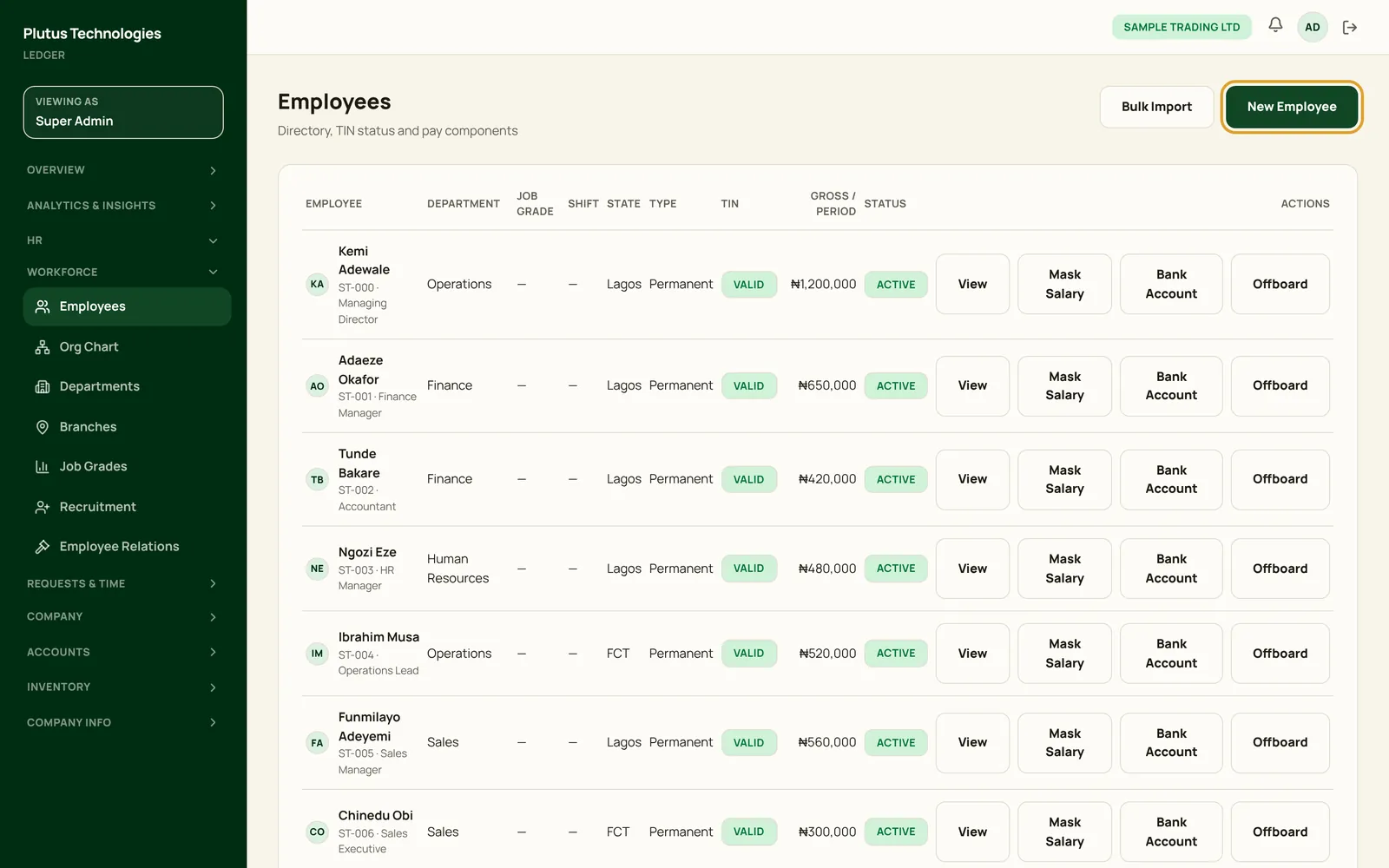
- Choose New Employee.
- Under Identity & Employment, enter the employee number, full name, state or region of residence, employment type and date of joining. Add their job title, manager and branch.
- Under Pay Components, enter the basic, housing and transport pay and any other earnings for one pay period, as shown on the record and payslips. Add the annual rent they pay, for rent relief.
- Under Statutory & Compliance, enter their tax ID. In Nigeria, add their pension fund administrator, RSA PIN and NHF number. Elsewhere, record their Family shares (in halves) and Expatriate status if your country's rules use them.
- Choose Create Employee. To add many people at once, use Bulk Import and paste a CSV with the same columns.
The form labels the pay fields “Annual”, but Plutus uses them as the amounts for each pay period. For someone paid monthly, enter their monthly basic, housing and transport.
 (opens full size in a new tab)
 (opens full size in a new tab)
Employee records and logins
- In the app
- HR, then Workforce, then Employees
- Who
- Super Admin
- Payroll Manager
- Accountant
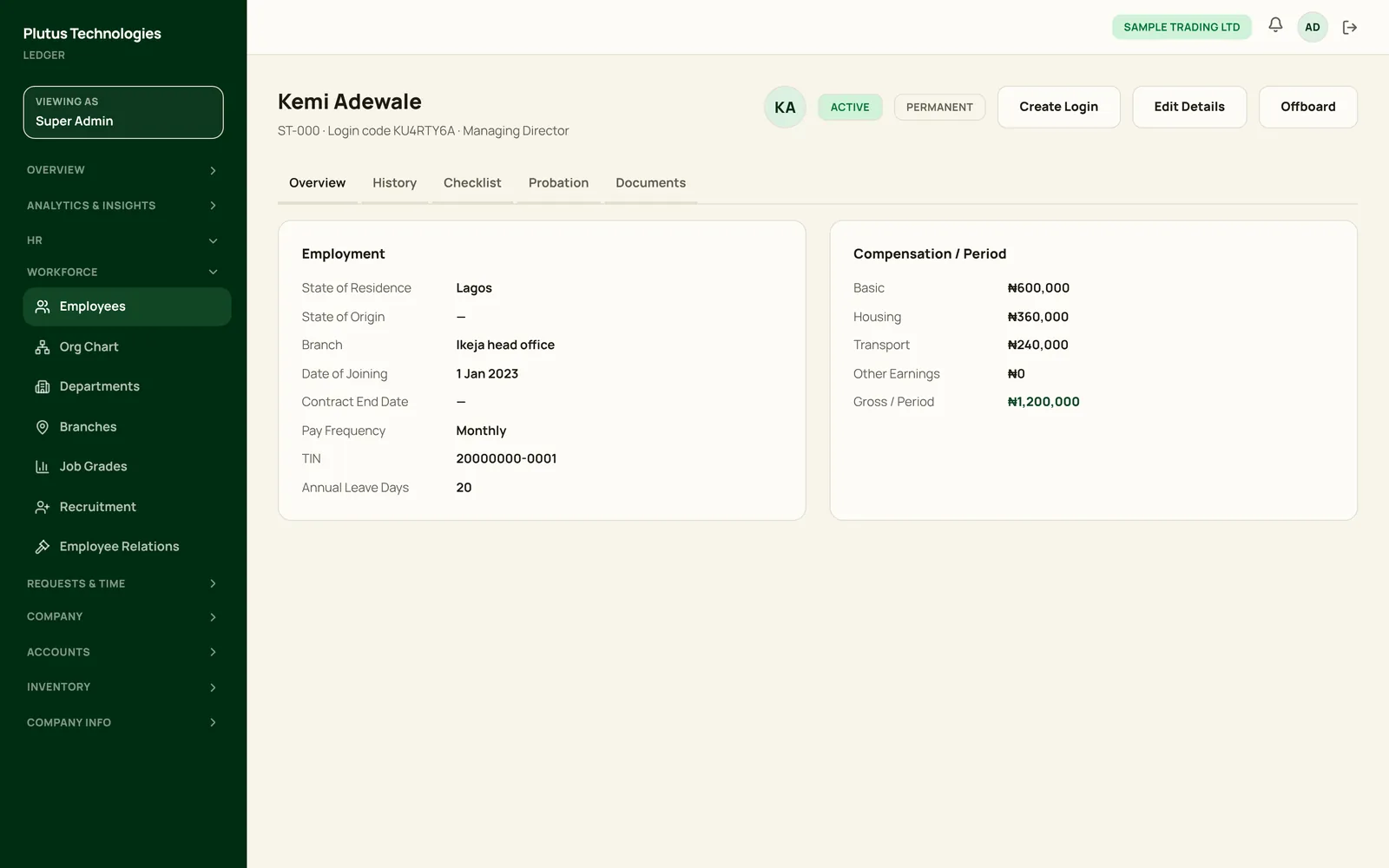
- Choose View on an employee to open their record. Its tabs are Overview, History, Checklist, Probation and Documents.
- Choose Create Login to give them self-service access. They can sign in with their email or the login code on their record.
- Use Edit Details for changes and Offboard when they leave.
- Mask Salary on the Employees list hides an employee's pay from their manager.
- Bank Account stores the account their net pay goes to.
- With a login, employees see their payslips, leave balance and requests, expenses, loans, benefits, attendance and documents.
 (opens full size in a new tab)
Departments and the org chart
- In the app
- HR, then Workforce, then Departments
- Departments lists each department and its head. A Department Manager sees only the departments they head.
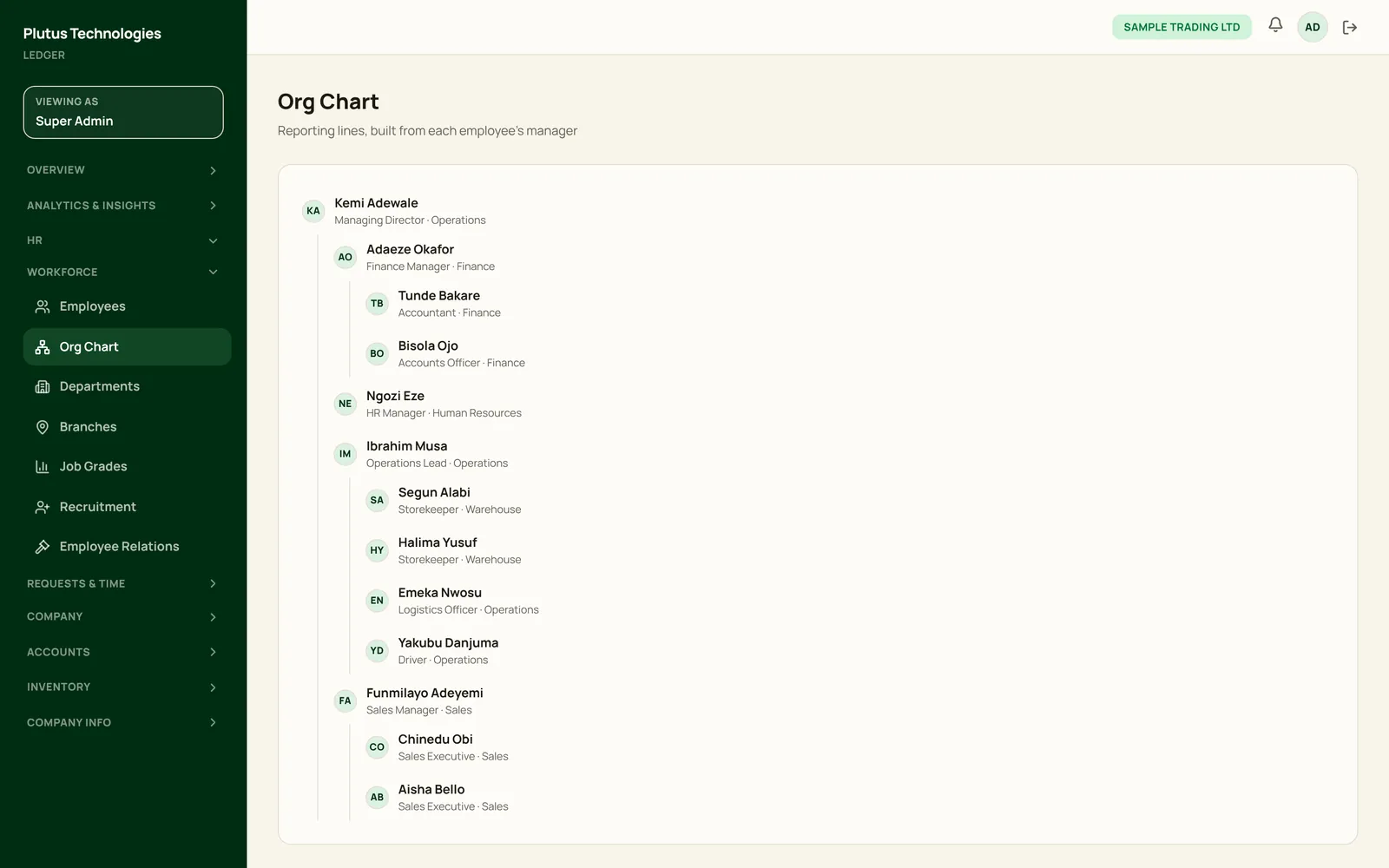
- Org Chart draws reporting lines from each employee's manager.
- Branches and Job Grades sit beside them under Workforce.
 (opens full size in a new tab)
Approve leave
- In the app
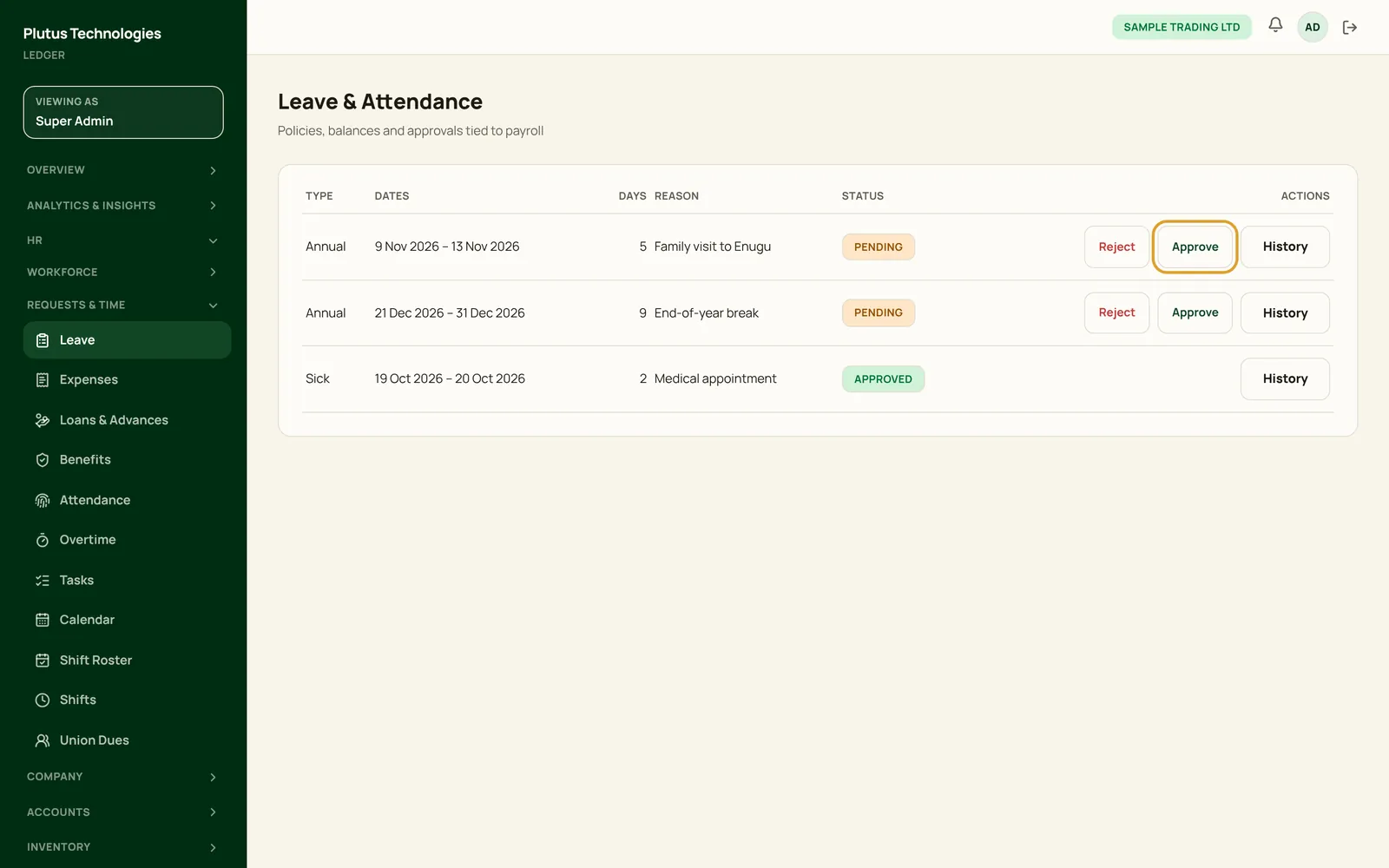
- HR, then Requests & Time, then Leave
- Employees request annual, sick, maternity, paternity or unpaid leave from self-service.
- Requests appear here as Pending. Choose Approve or Reject.
- Choose History to see every decision on a request.
 (opens full size in a new tab)