Accounting
Accounts, invoices, bills, journals, bank reconciliation, statements and the lock date.
In this guide, and all guides
Chart of accounts
- In the app
- Accounts, then Financial Information, then General Ledger, then Chart of Accounts
- Who
- Super Admin
- Payroll Manager
- Accountant
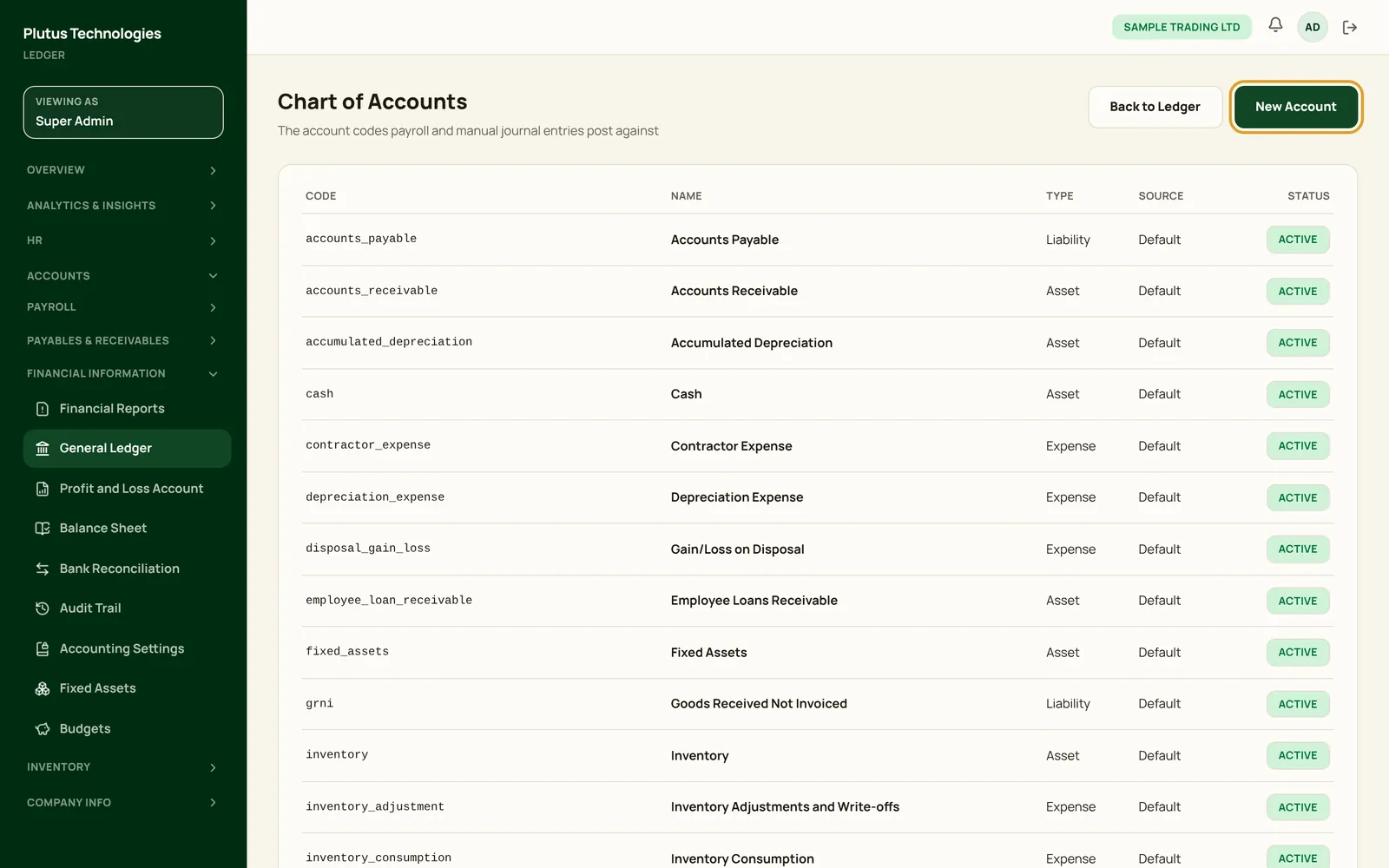
Plutus starts you with the accounts payroll, tax, receivables, payables and fixed assets post to, marked Default. Inventory adds its own accounts when you switch it on.
- Choose New Account.
- Enter a code and a name, and choose the type: asset, liability, equity, revenue or expense.
 (opens full size in a new tab)
Invoice customers
- In the app
- Accounts, then Payables & Receivables, then Customers
- Who
- Super Admin
- Payroll Manager
- Accountant
- Add the customer first: Customer List, then New Customer, with their name, contact email and phone, and TIN.
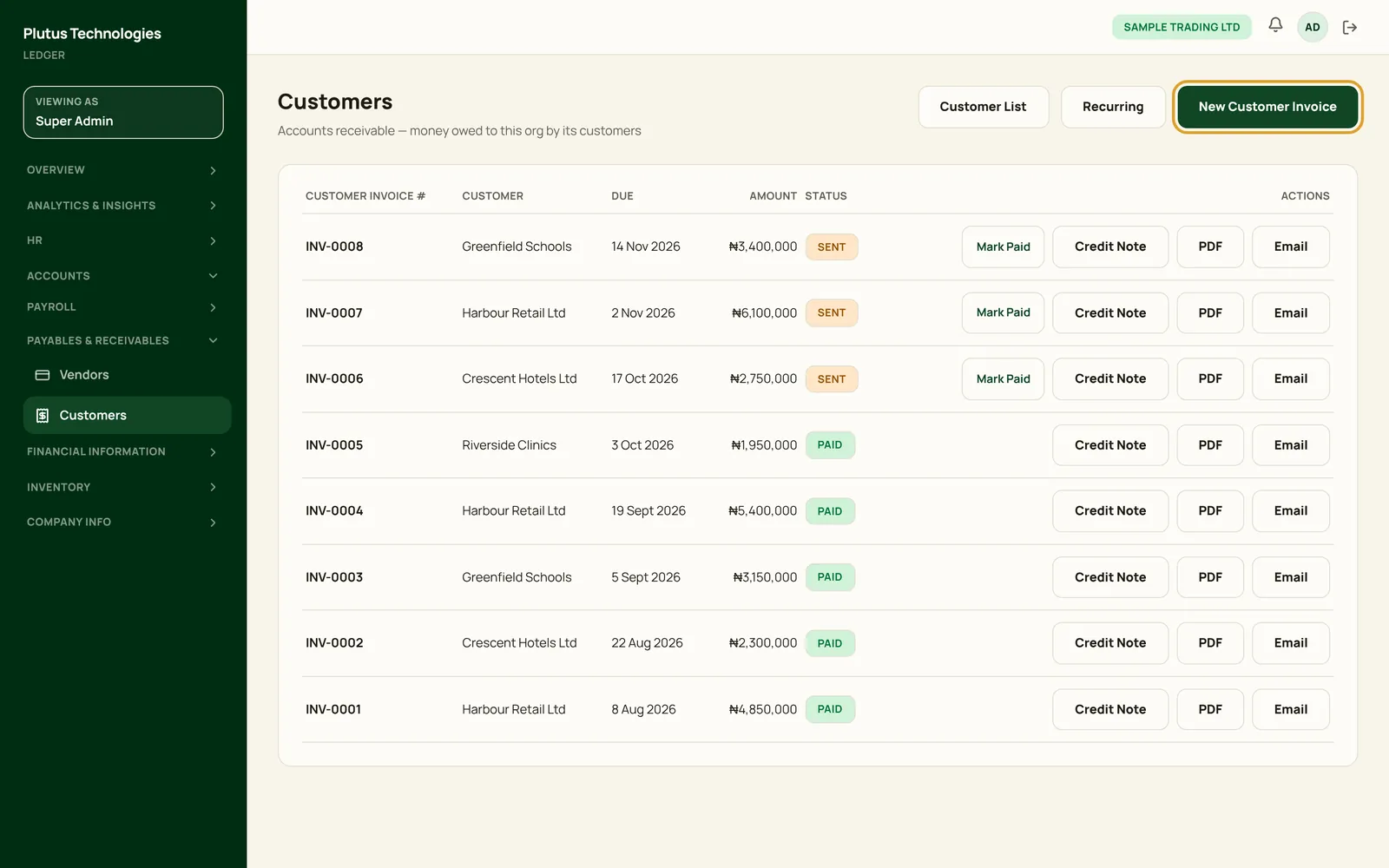
- Choose New Customer Invoice. Pick the customer and enter the invoice number, issue date, due date, revenue account, amount and a description.
- Choose Send to issue it. This posts the amount to Accounts Receivable.
- When the customer pays, choose Mark Paid.
- Credit Note reduces an issued invoice; Void cancels it.
- PDF downloads the invoice and Email sends it.
- Recurring sets up invoices that repeat on a schedule.
 (opens full size in a new tab)
Record and pay vendor bills
- In the app
- Accounts, then Payables & Receivables, then Vendors
- Who
- Super Admin
- Payroll Manager
- Accountant
- Add the vendor first: Vendor List, then New Vendor.
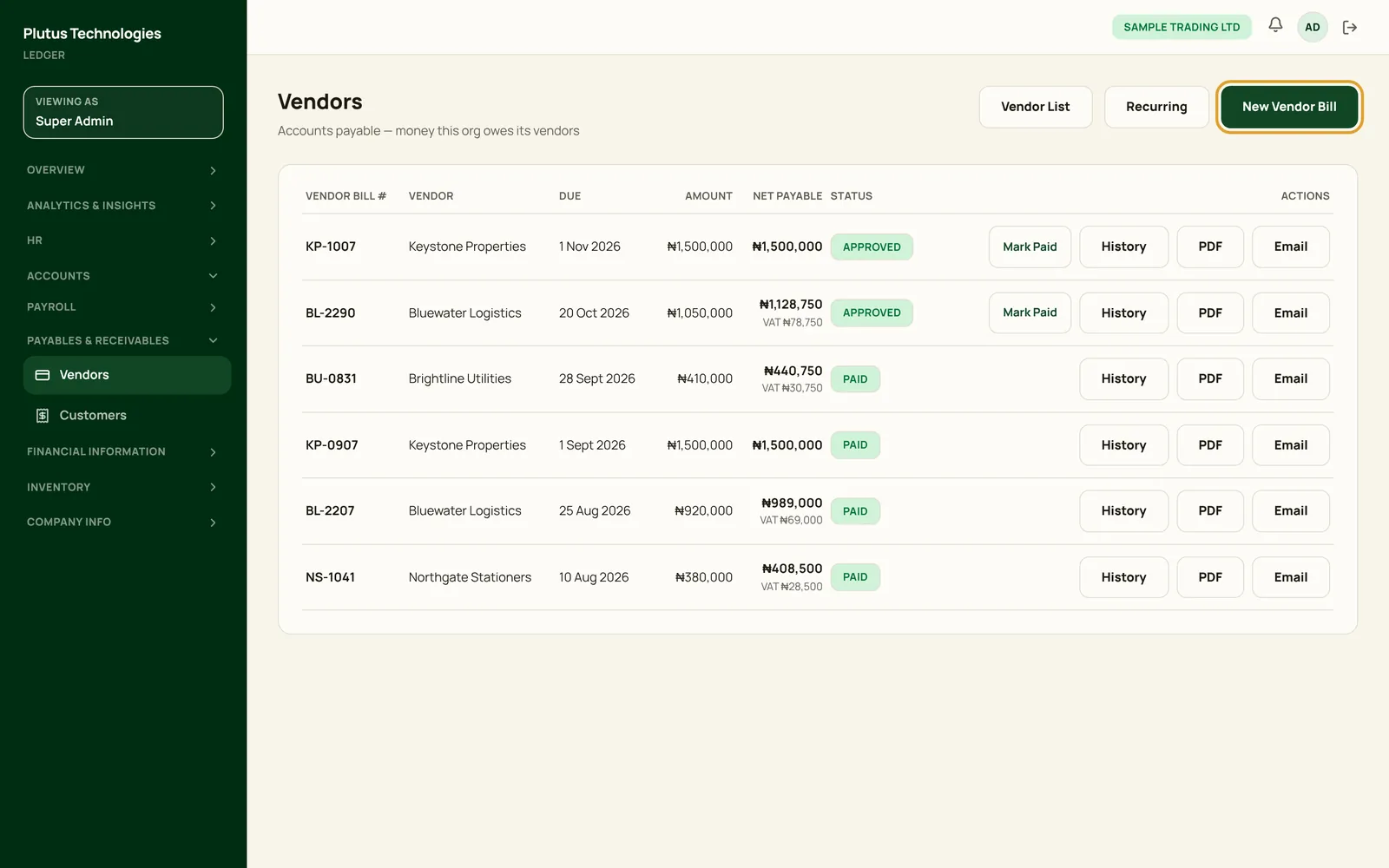
- Choose New Vendor Bill. Enter the vendor, bill number, bill date, due date, expense account, amount and any VAT.
- Choose the WHT Category: None, Goods or Services. Plutus works out the withholding tax.
- If the bill is for stock you have received, link it to the goods receipt.
- Choose Approve to post it to Accounts Payable, then Mark Paid when you pay it.
Net payable is the amount plus VAT, less withholding tax. Each bill keeps a History of what happened to it.
 (opens full size in a new tab)
General ledger and journal entries
- In the app
- Accounts, then Financial Information, then General Ledger
- Who
- Super Admin
- Payroll Manager
- Accountant
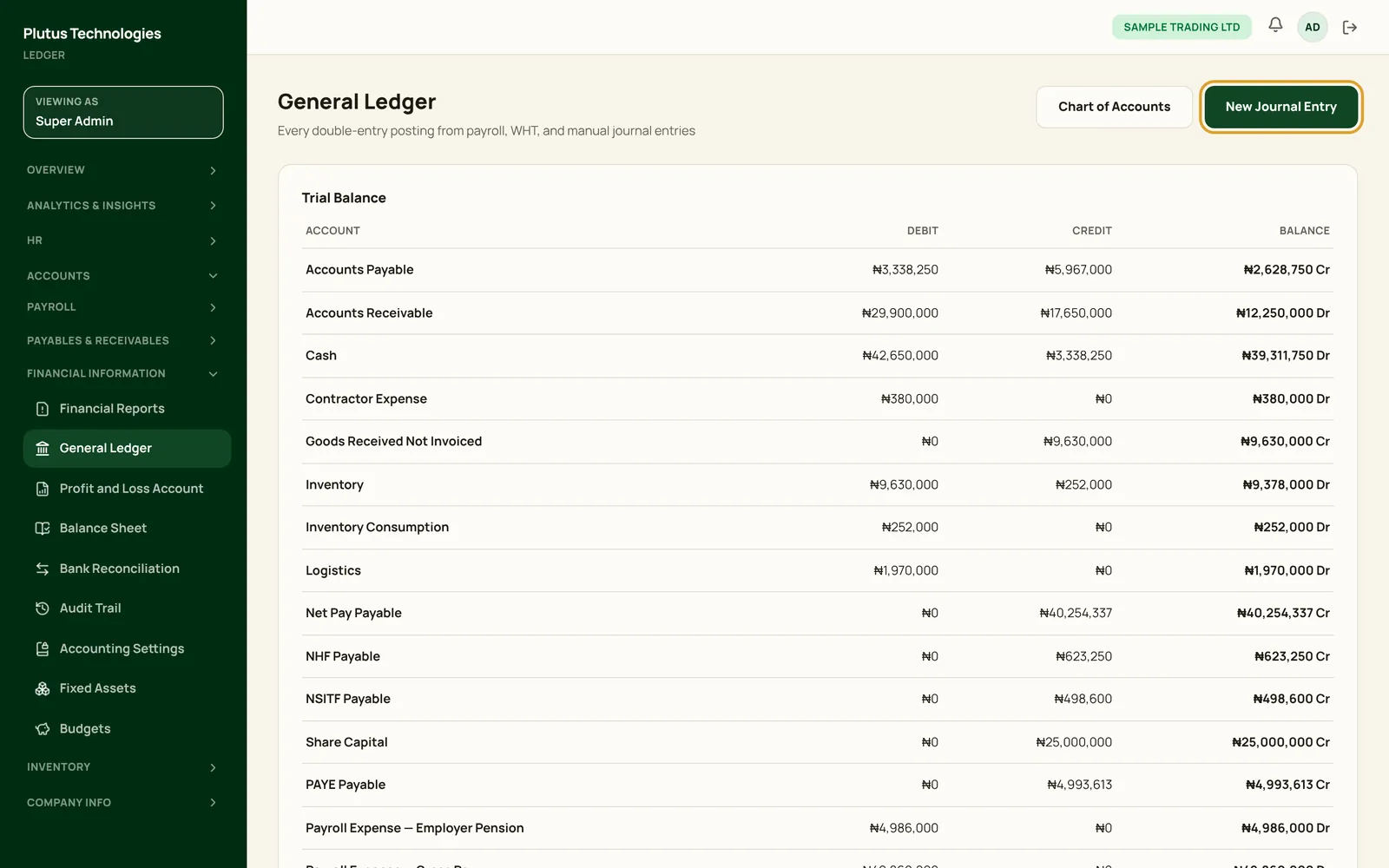
The trial balance lists every account with its debits, credits and balance. Payroll, invoices, bills and inventory post here on their own.
- Choose New Journal Entry and enter a description.
- Add a line for each account, with the side (debit or credit) and the amount.
- Post it. Plutus refuses an entry until total debits equal total credits.
 (opens full size in a new tab)
Reconcile the bank
- In the app
- Accounts, then Financial Information, then Bank Reconciliation
- Who
- Super Admin
- Payroll Manager
- Accountant
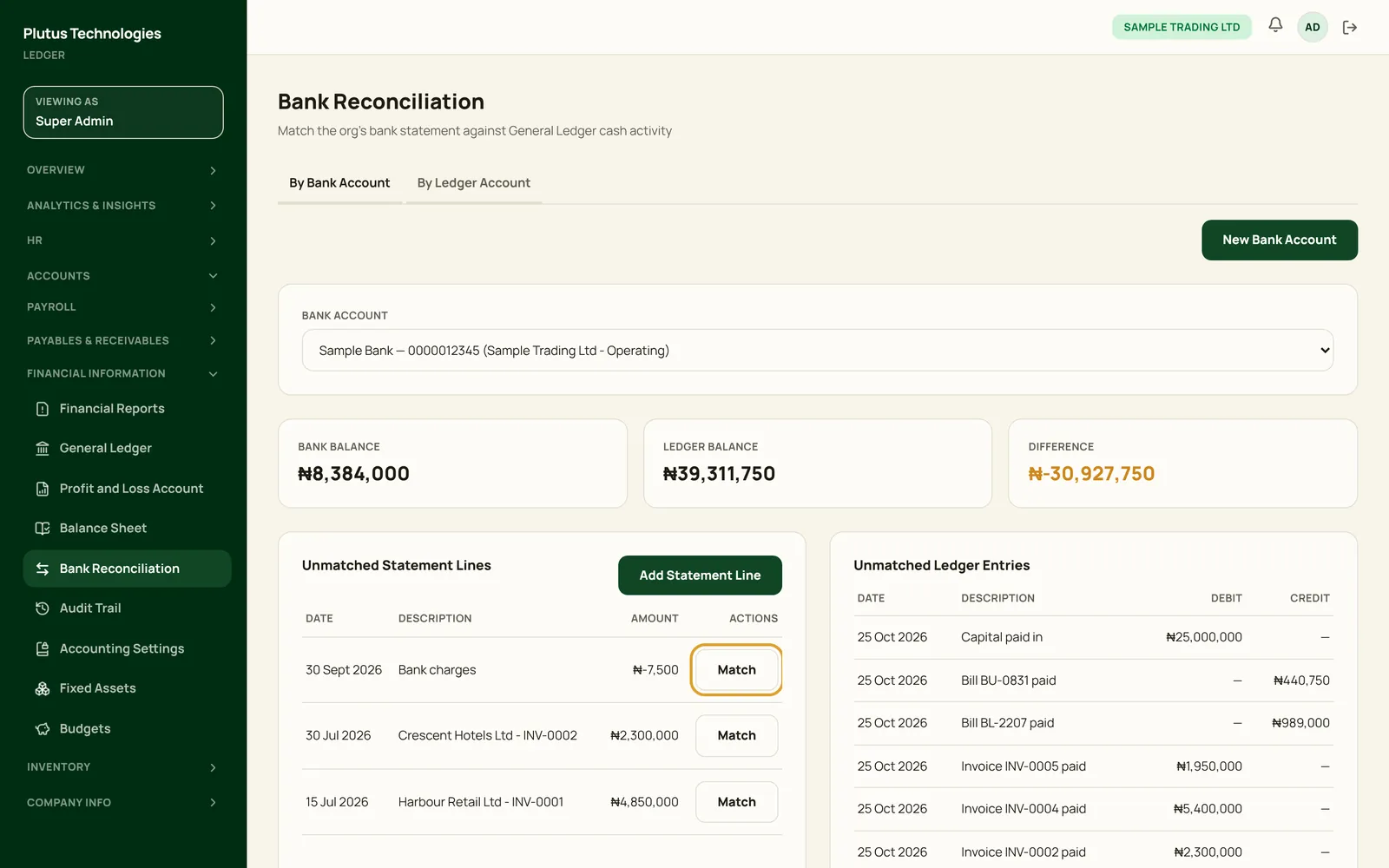
- Choose New Bank Account and enter the bank name, account number, account name and the ledger account it maps to.
- Choose Add Statement Line for each line on your bank statement: the date, description, money in or out, and amount.
- Choose Match to pair a statement line with the ledger entry of the same amount.
The bank balance, ledger balance and difference update as you match. When every line is matched, both lists read “Nothing outstanding”.
 (opens full size in a new tab)
Profit and loss, and the balance sheet
- In the app
- Accounts, then Financial Information, then Profit and Loss Account
- Who
- Super Admin
- Payroll Manager
- Accountant
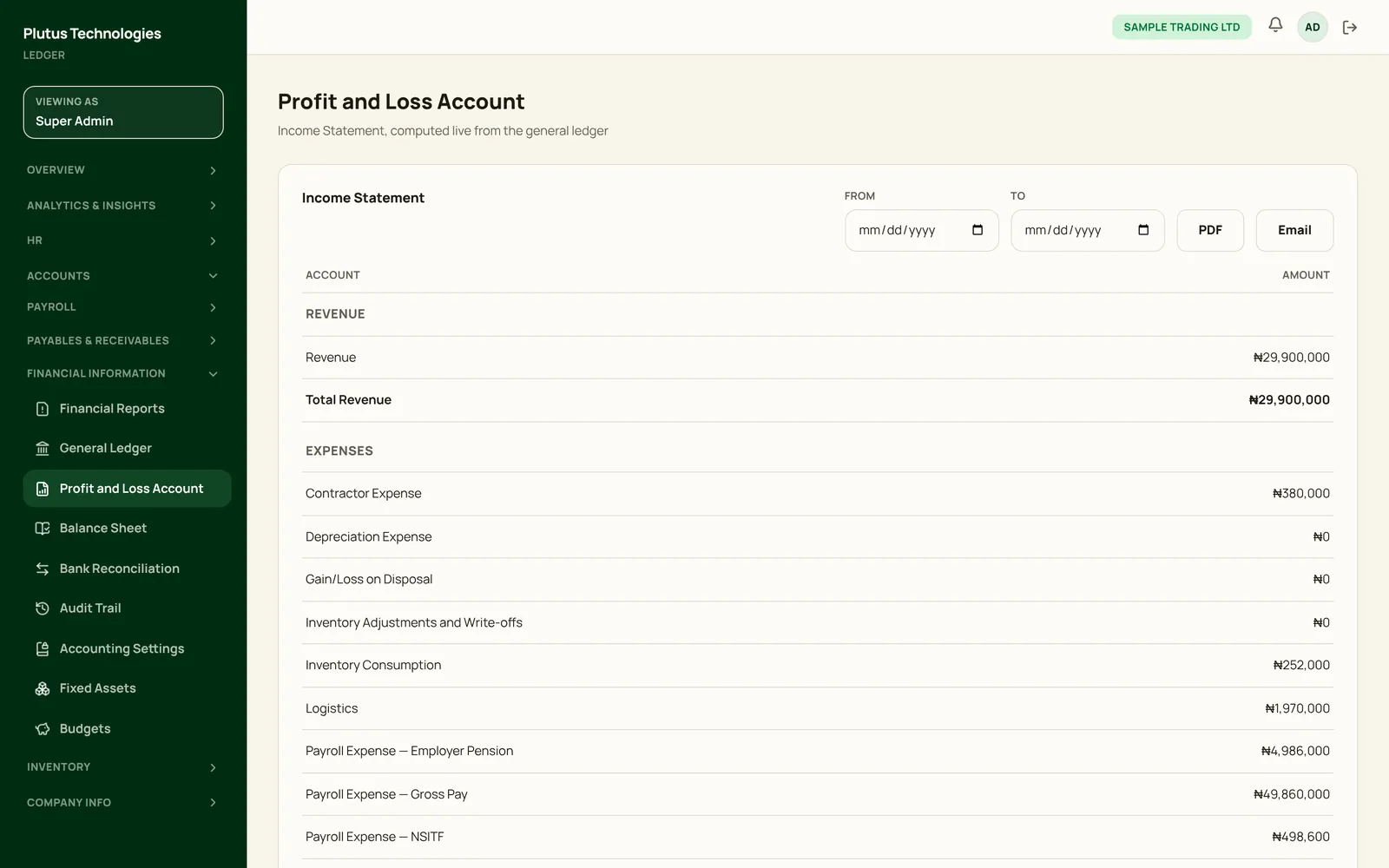
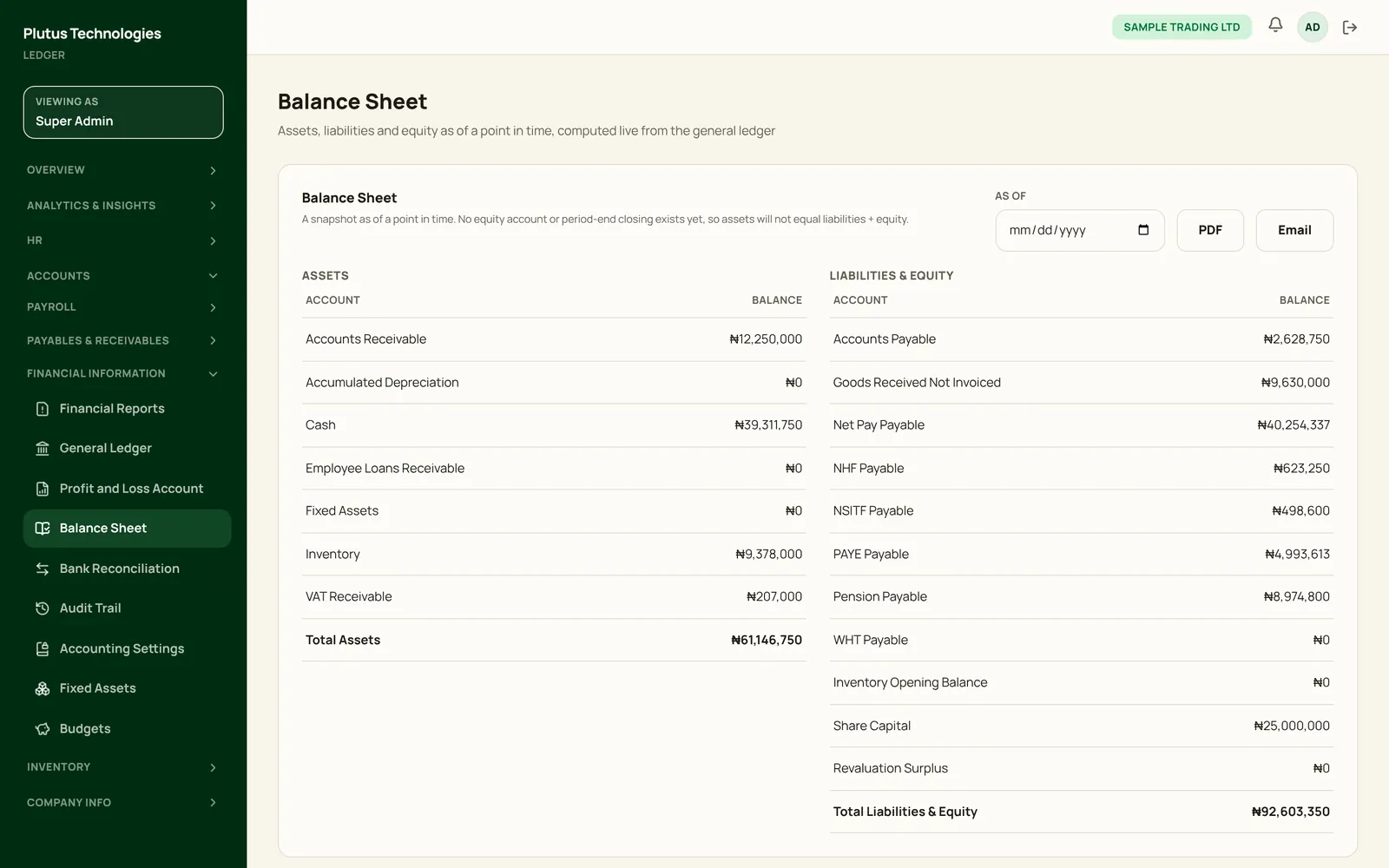
Both statements are computed live from the general ledger, so they always match it.
- For the profit and loss account, choose the From and To dates.
- For the balance sheet (under Balance Sheet), choose the As of date.
- Choose PDF to download either statement, or Email to send it.
 (opens full size in a new tab)
 (opens full size in a new tab)
Close a period with the lock date
- In the app
- Accounts, then Financial Information, then Accounting Settings
- Who
- Super Admin
- Accountant
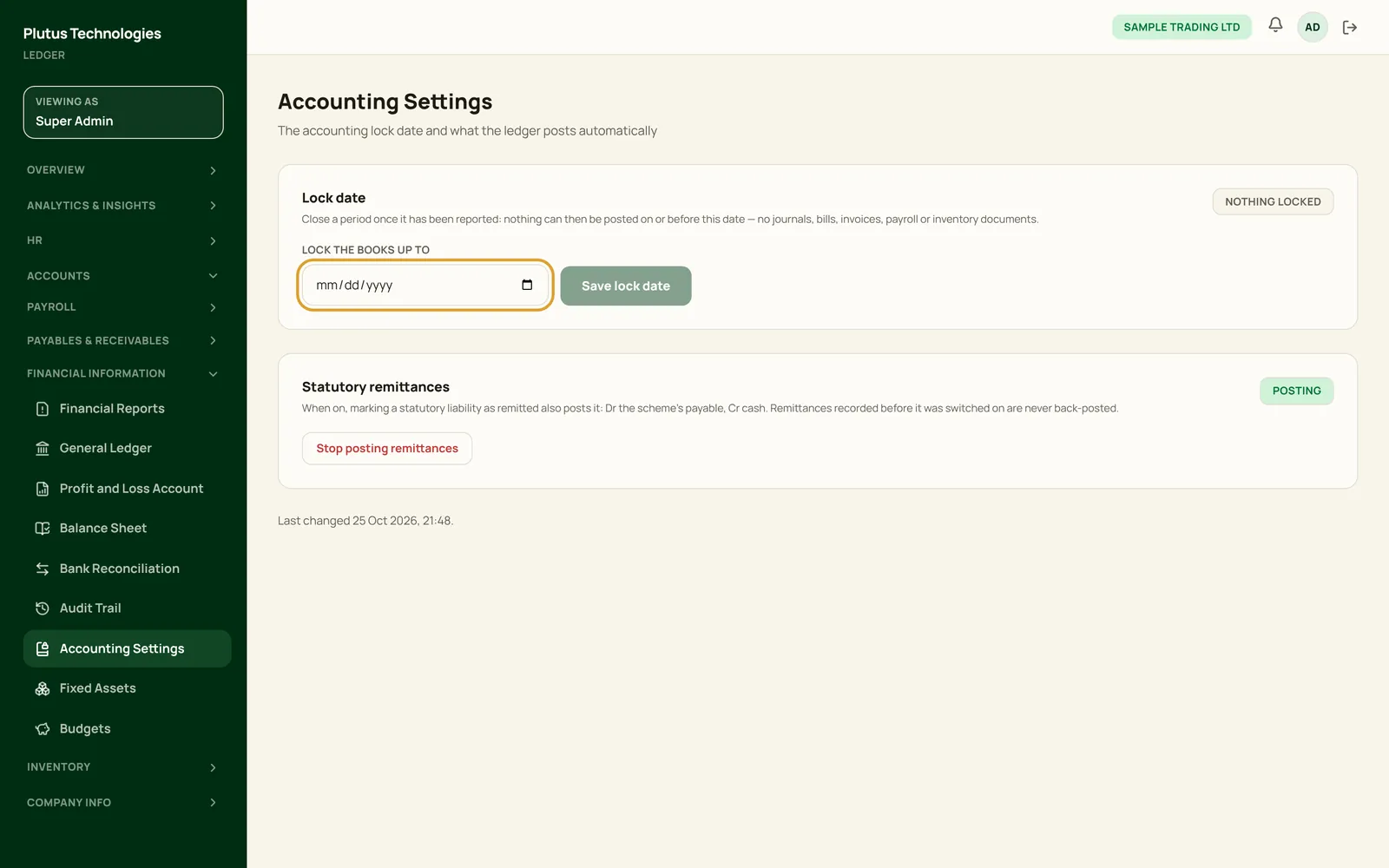
- Choose the date in Lock the books up to.
- Choose Save lock date. Nothing can then be posted on or before it: no journals, bills, invoices, payroll or inventory documents.
Only a Super Admin or an Accountant can change the lock date. On the same page, Statutory remittances decides whether marking a statutory liability as remitted also posts the payment.
 (opens full size in a new tab)