Payroll
Statutory rules and Tax Settings, pay runs, payslips and how each figure is derived, reports and the calculator.
In this guide, and all guides
Nigeria's statutory rules
- In the app
- Accounts, then Payroll, then Compliance Engine
- Who
- Super Admin
- Payroll Manager
- Accountant
- Auditor
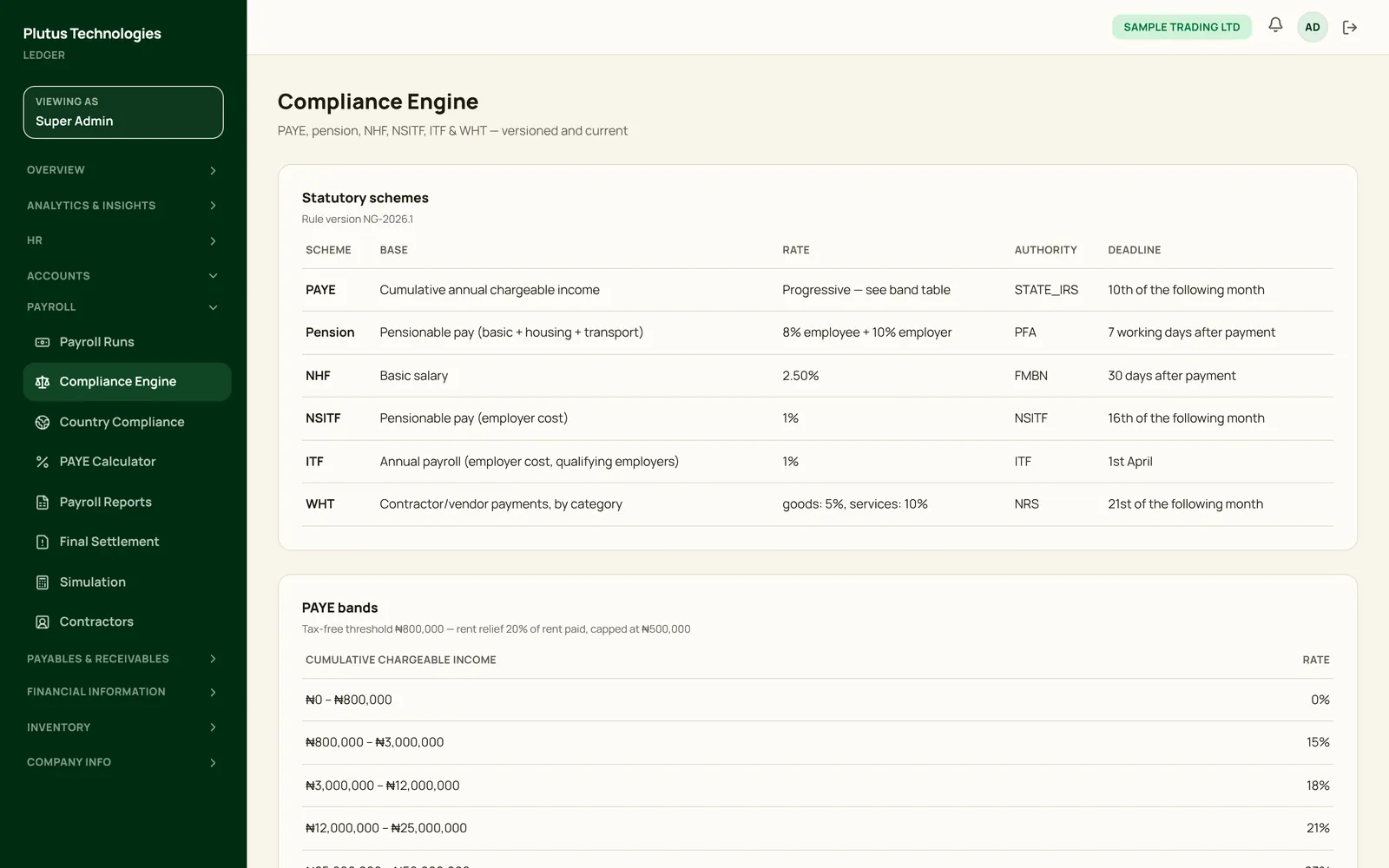
For a Nigerian organisation, the Compliance Engine lists the rules every pay run uses: PAYE, pension, NHF, NSITF, ITF and WHT, with each one's base, rate, authority and deadline, and the PAYE bands. They carry a rule version, such as NG-2026.1.
The Compliance Engine, PAYE Calculator, Simulation and Contractors screens are for Nigerian organisations. Before your first pay run, make sure each employee has their pay components, state of residence, TIN and pension details. See People & HR.
 (opens full size in a new tab)
Tax Settings, outside Nigeria
- In the app
- Accounts, then Payroll, then Tax Settings
- Who
- Super Admin
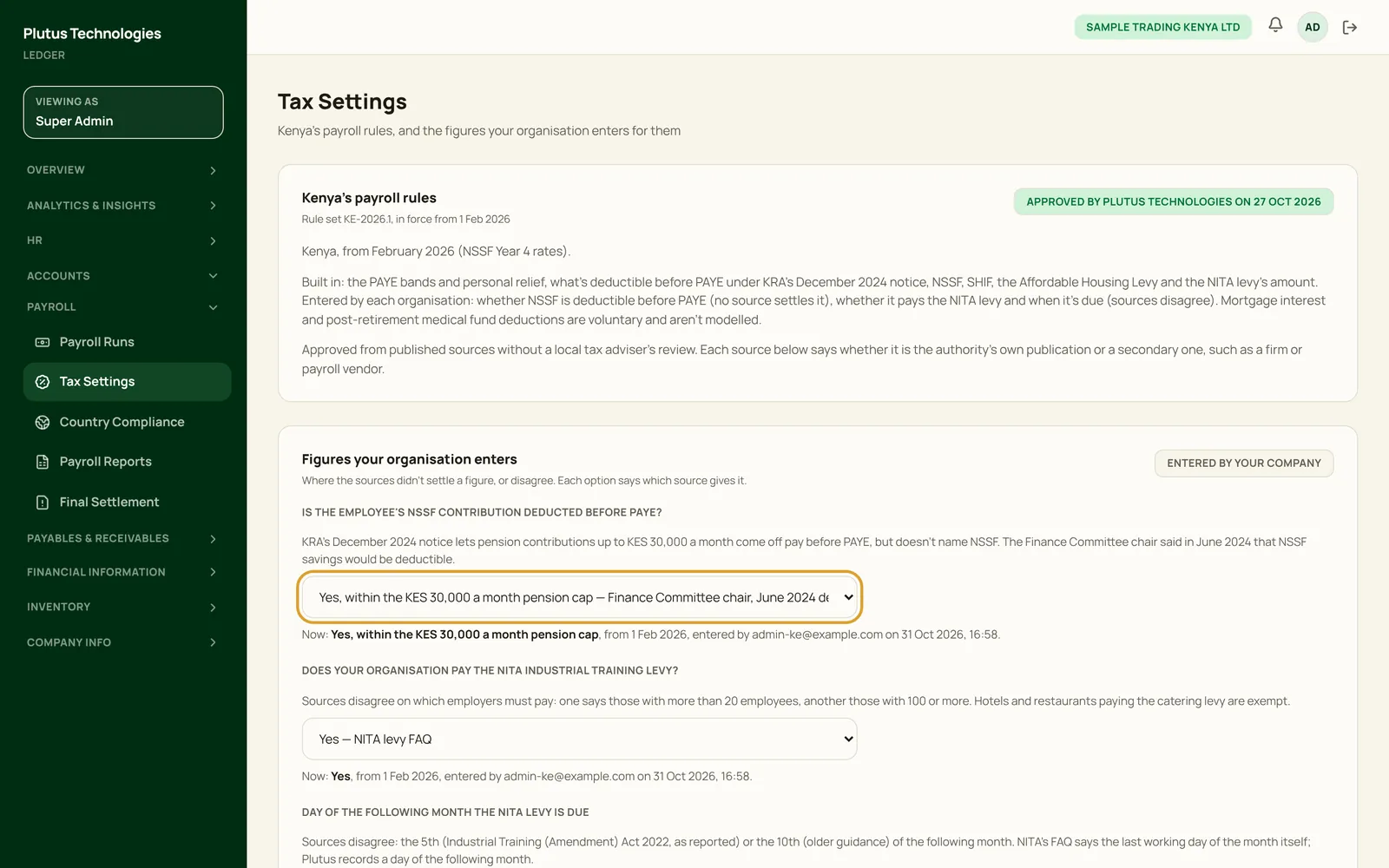
Ghana, Kenya, Rwanda, The Gambia and Côte d'Ivoire run on rule sets Plutus Technologies approved on 27 October 2026 from published sources, before review by a local tax adviser. Where the sources disagree or say nothing, the rule set leaves the figure to your organisation, and pay runs are refused until every figure is entered.
- Open Tax Settings. The top panel names your country's rule set, the date it applies from, and who approved it.
- Under Figures your organisation enters, read why each figure is open, then choose a value. Each option names the source that gives it.
- Choose the date it Takes effect from, and add a note if you like, such as who advised it.
- Save. The button counts the figures you changed, such as Save 3 figures.
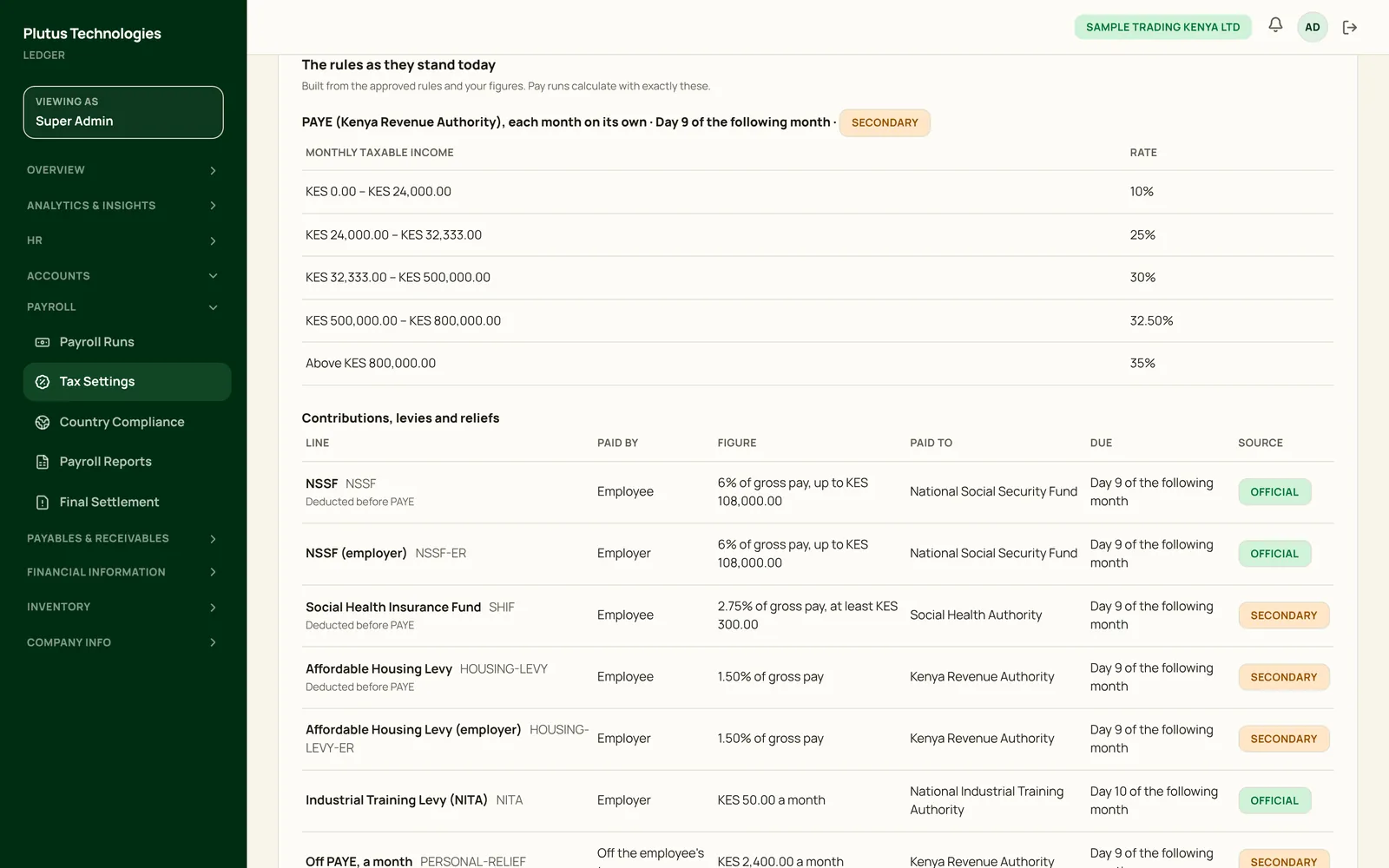
- The rules as they stand today lists every line a pay run uses: the income tax bands, then each contribution, levy and relief, with who pays it, who it's paid to, when it's due and its source.
- Sources marks each source official (the law or the authority's own publication) or secondary, such as an accounting firm or payroll vendor.
- History keeps every figure ever entered and who entered it. Nothing is overwritten: a new value takes over from its date, and it can't take effect on or before the end of a locked pay run.
- When a new rule set is due, such as Rwanda's from 1 January 2027, the figures it adds appear under its start date, so you can enter them before the first pay run that needs them.
Only a Super Admin can enter figures. Payroll Managers, Accountants and Auditors can read the page. Every country's rules and Tax Settings are listed in the Country tax rules guide.
 (opens full size in a new tab)
 (opens full size in a new tab)
Start a pay run
- In the app
- Accounts, then Payroll, then Payroll Runs
- Who
- Super Admin
- Payroll Manager
- Accountant
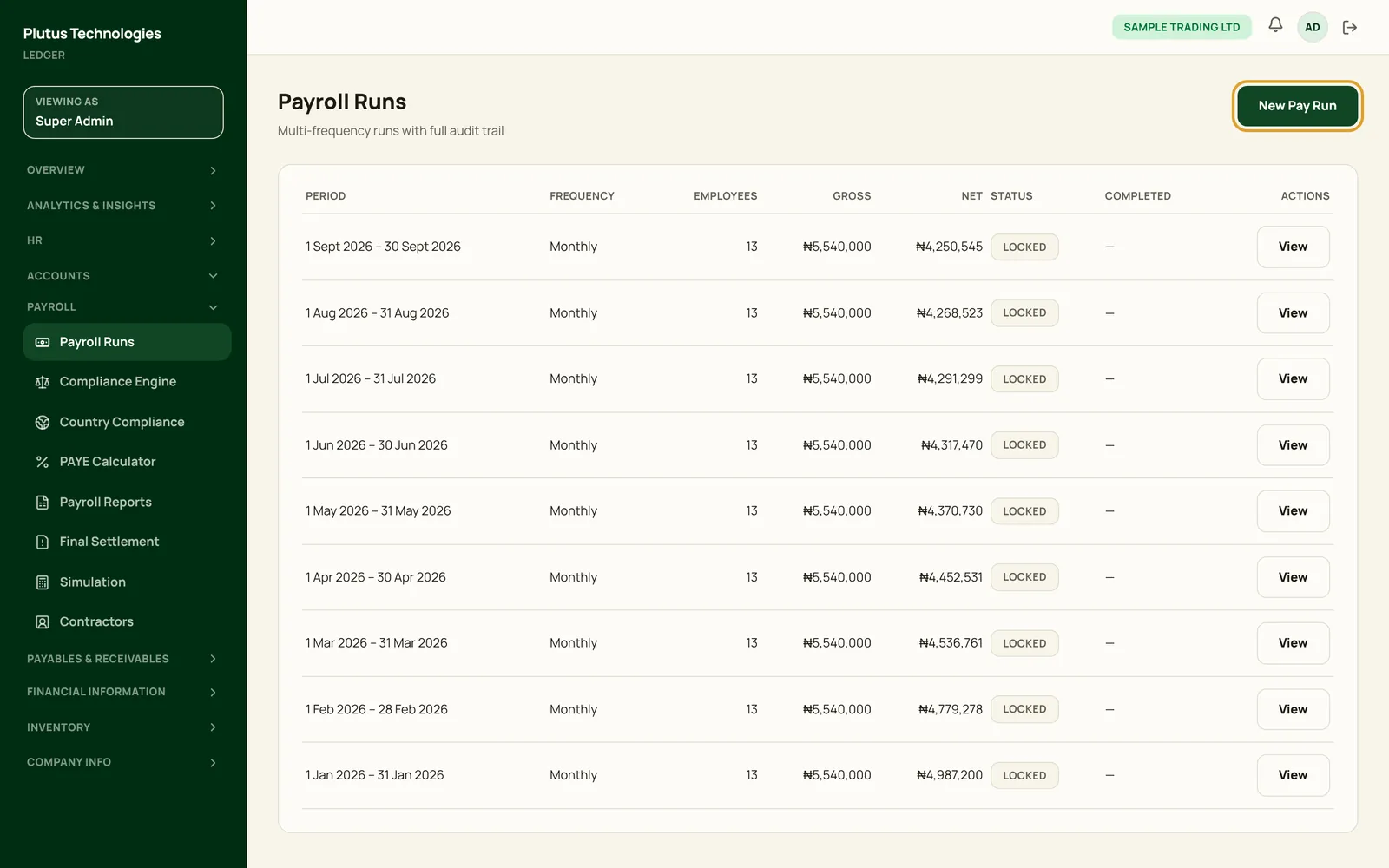
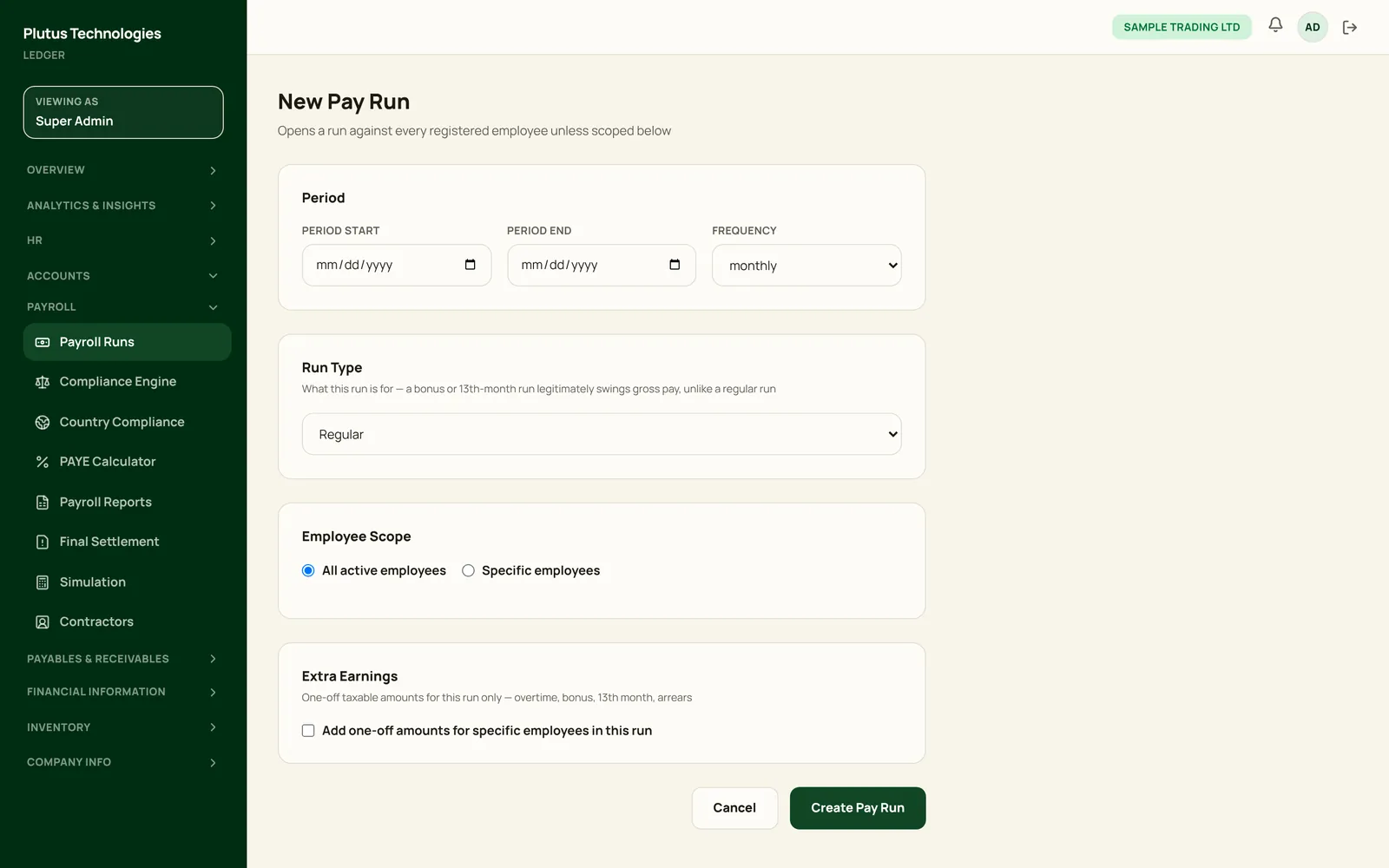
- Choose New Pay Run.
- Enter the period start and end, and the frequency: monthly, weekly or biweekly.
- Choose the run type: Regular, Bonus, 13th Month, Arrears or Off-cycle.
- Choose who is in it: all active employees, or specific employees.
- To pay one-off taxable amounts this time only, such as overtime or a bonus, tick Add one-off amounts and enter them.
- Choose Create Pay Run.
The run is created as a draft, and its employees are fixed at that moment. Someone hired later can't join a run that nobody reviewed them against.
 (opens full size in a new tab)
 (opens full size in a new tab)
Pay run statuses
The Payroll Runs list shows where each run is:
- Draft: created, with its employees fixed. Nothing is calculated or posted yet.
- Validated: checked against the previous run, with unusual changes flagged.
- Locked: payslips are calculated and stored, and the payroll journal is posted. A locked run can't be edited.
- Reversed: undone by a compensating journal.
Read payslips and their derivation
- In the app
- Accounts, then Payroll, then Payroll Runs
- Who
- Super Admin
- Payroll Manager
- Accountant
- Auditor
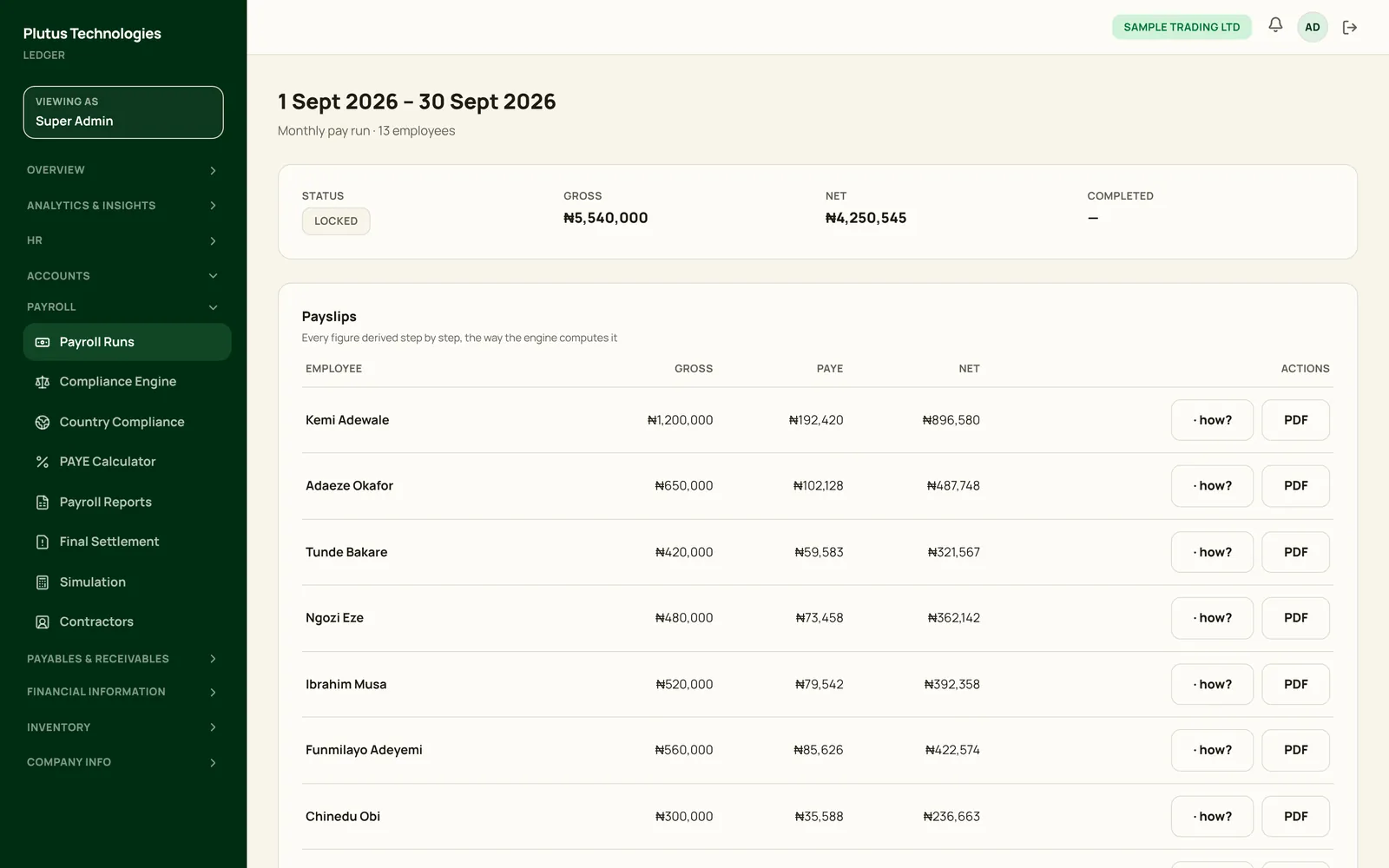
- Choose View on a run to see every payslip, with gross pay, income tax and net pay.
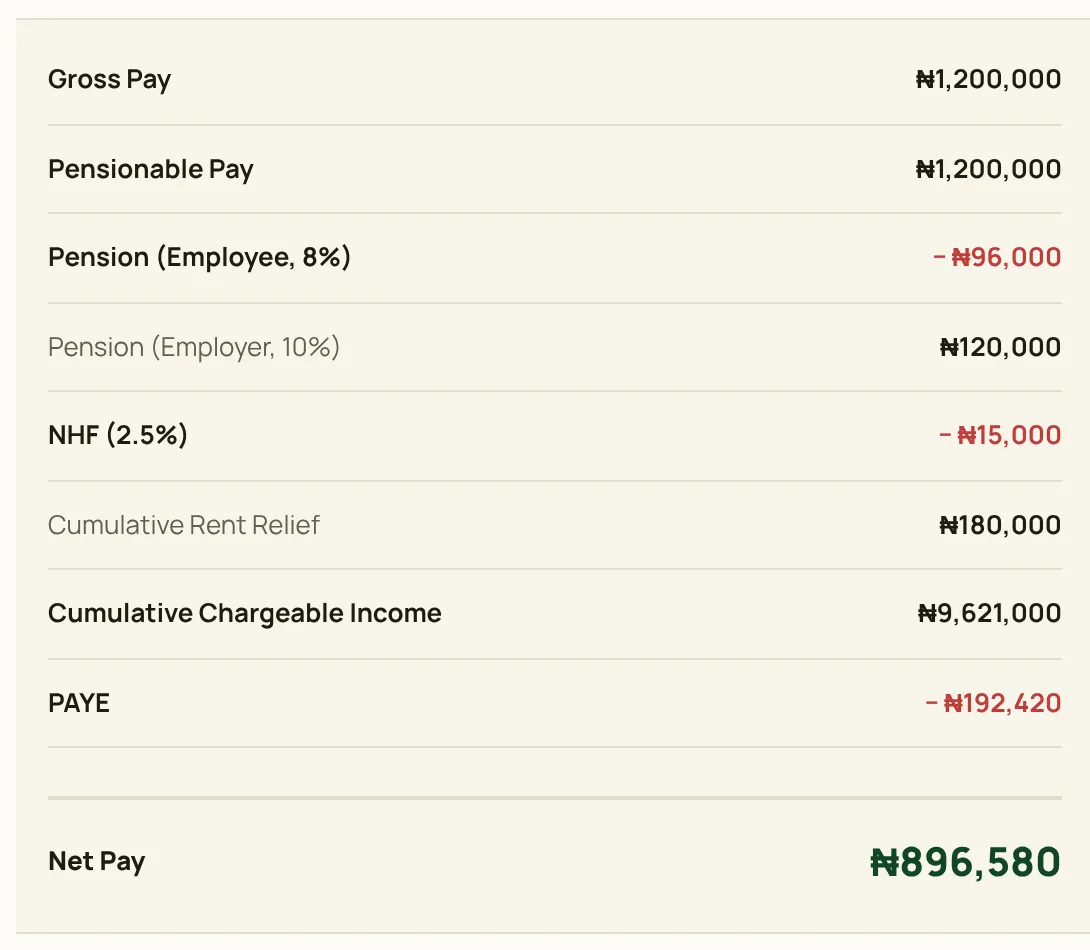
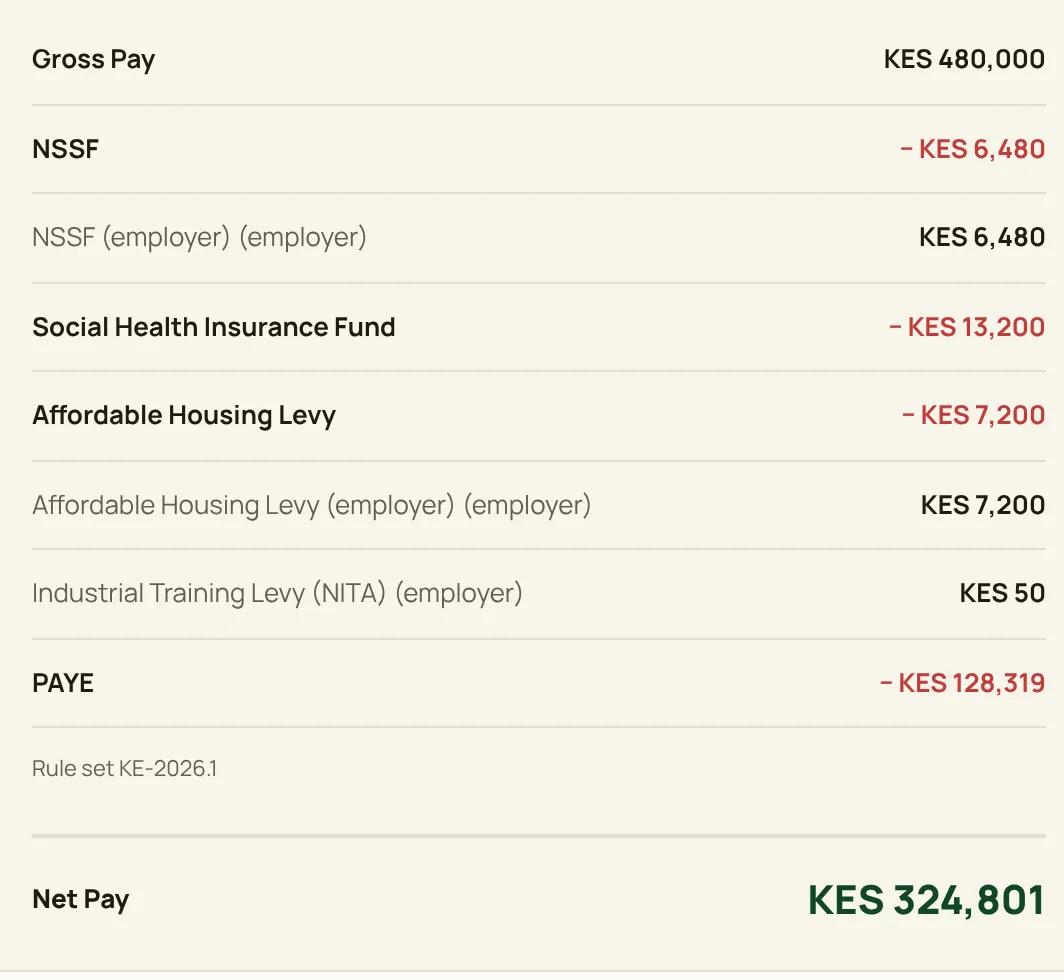
- Choose how? on a payslip to see how each figure was worked out. Outside Nigeria, it lists each of your country's lines in turn, and the rule set it used.
- Choose PDF to download the payslip. Its delivery status shows beside the breakdown, with Resend Payslip.
In Nigeria, PAYE is cumulative over the tax year. Plutus taxes the year-to-date chargeable income and subtracts the PAYE already withheld, so a pay rise or a missed month is handled properly.
 (opens full size in a new tab)
 (opens full size in a new tab)
 (opens full size in a new tab)
Reverse a pay run
- In the app
- Accounts, then Payroll, then Payroll Runs
- Who
- Super Admin
- Payroll Manager
- Accountant
- Open the locked run and choose Reverse Pay Run.
- Plutus posts a compensating journal and marks the run Reversed.
- If the run's statutory liabilities have already been filed or remitted, Plutus warns you first. Choose Reverse Anyway only if you mean it.
Payroll reports
- In the app
- Accounts, then Payroll, then Payroll Reports
- Who
- Super Admin
- Payroll Manager
- Accountant
- Auditor
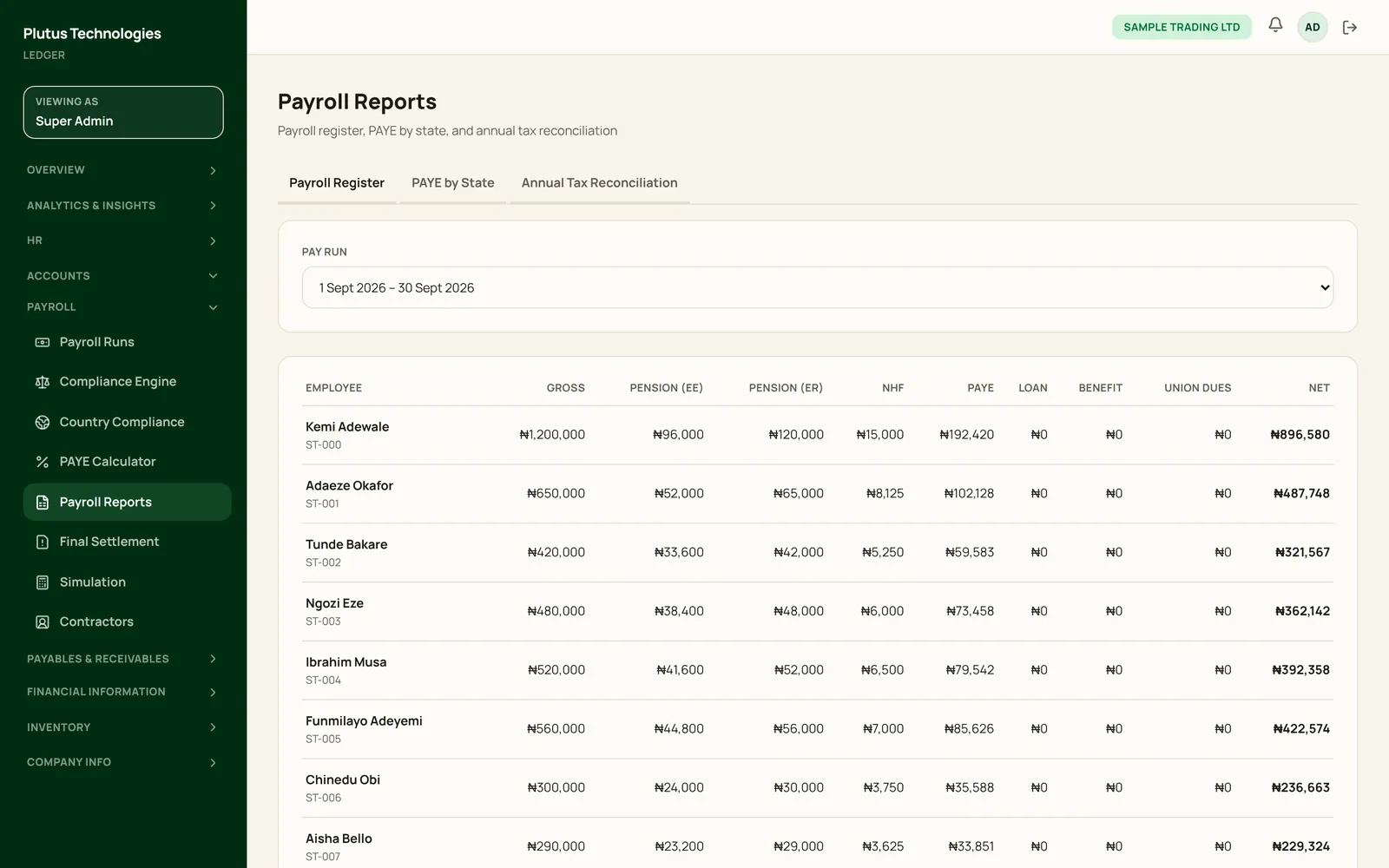
- Payroll Register: for a pay run you choose, every employee's gross pay, statutory deductions, loan, benefit and union dues deductions, and net pay.
- PAYE by State, in Nigeria: the number of employees and the total PAYE for each state.
- Statutory Summary, outside Nigeria: each statutory line's total over locked pay runs, with its kind, who it's paid to and the number of employees.
- Annual Tax Reconciliation: for a tax year, each employee's tax ID, gross pay, statutory deductions, income tax and number of payslips, with their certificate.
 (opens full size in a new tab)
Check a figure with the PAYE calculator, in Nigeria
- In the app
- Accounts, then Payroll, then PAYE Calculator
- Who
- Super Admin
- Payroll Manager
- Accountant
- Auditor
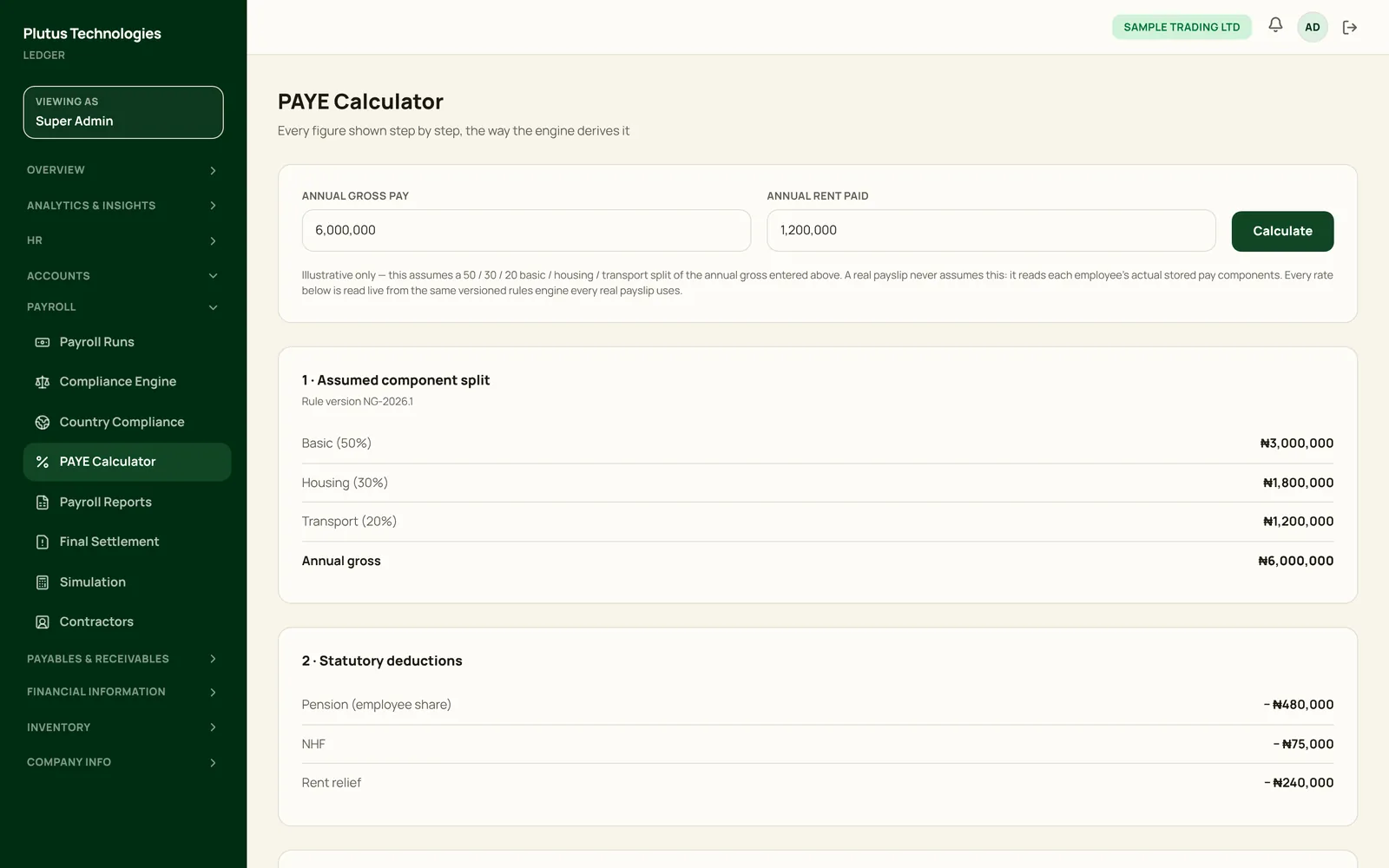
- Enter an annual gross pay and the annual rent paid.
- Choose Calculate to see each step, from the component split to tax by band.
The calculator assumes a 50/30/20 basic, housing and transport split. A real payslip uses each employee's own pay components.
 (opens full size in a new tab)
Country compliance
- In the app
- Accounts, then Payroll, then Country Compliance
- Who
- Super Admin
- Payroll Manager
- Accountant
- Auditor
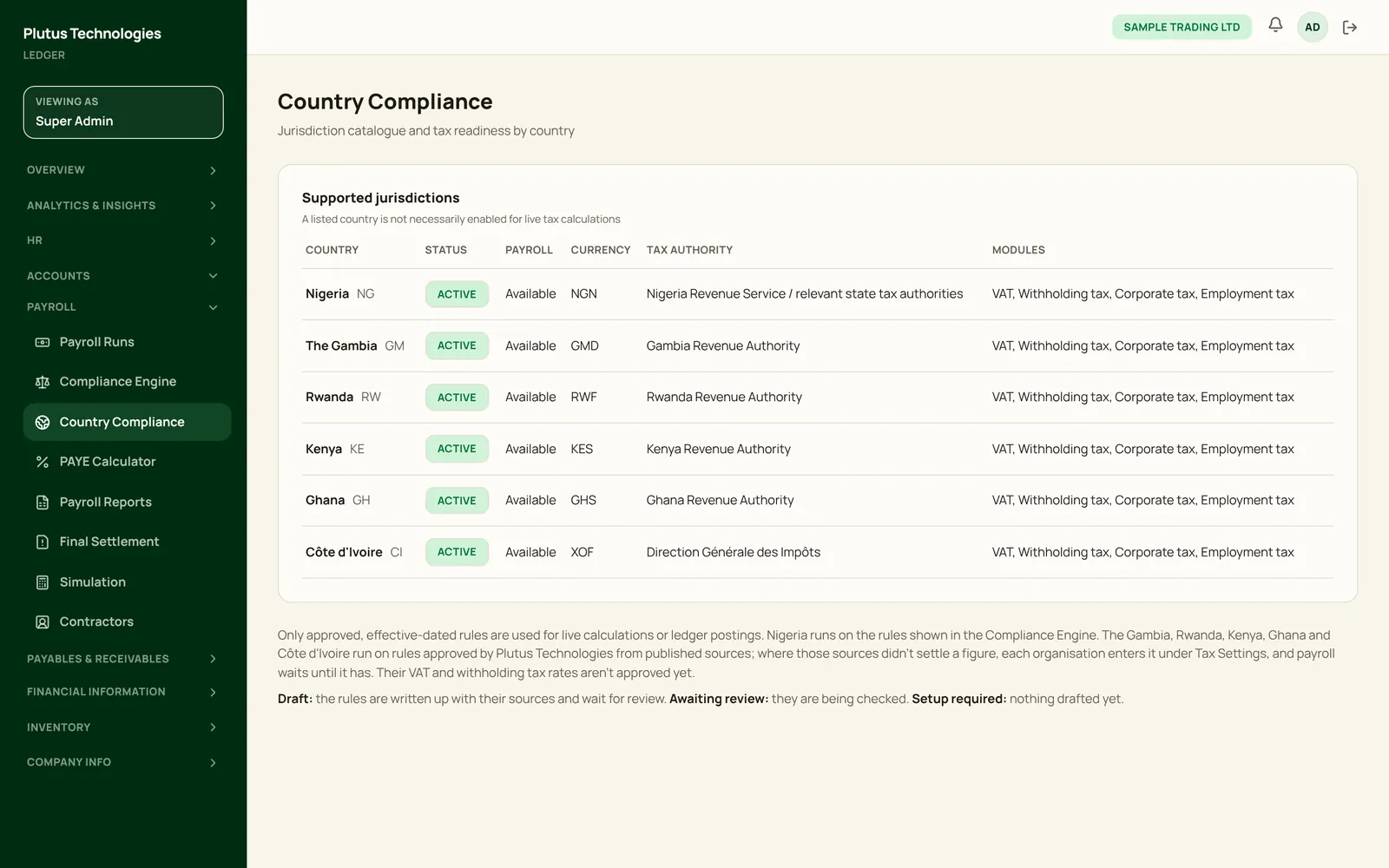
The catalogue lists every country Plutus supports, with its currency, tax authority and status. All six are active for payroll. Your organisation's country is chosen at sign-up, and can change in Setup & Onboarding until the first pay run or posted journal.
- Active: the rules are approved, and payroll runs on them.
- Draft: the rules are written up with their sources and wait for review.
- Awaiting review: they are being checked.
- Setup required: nothing is drafted yet.
Nigeria runs on its own rule versions. The other five run on rule sets Plutus Technologies approved from published sources, without a local tax adviser's review, with the open figures entered under Tax Settings. Their VAT and withholding tax aren't approved yet, so Plutus doesn't calculate them.
 (opens full size in a new tab)