Inventory
Items and warehouses, purchase orders, receiving, issues, transfers, counts and reports.
In this guide, and all guides
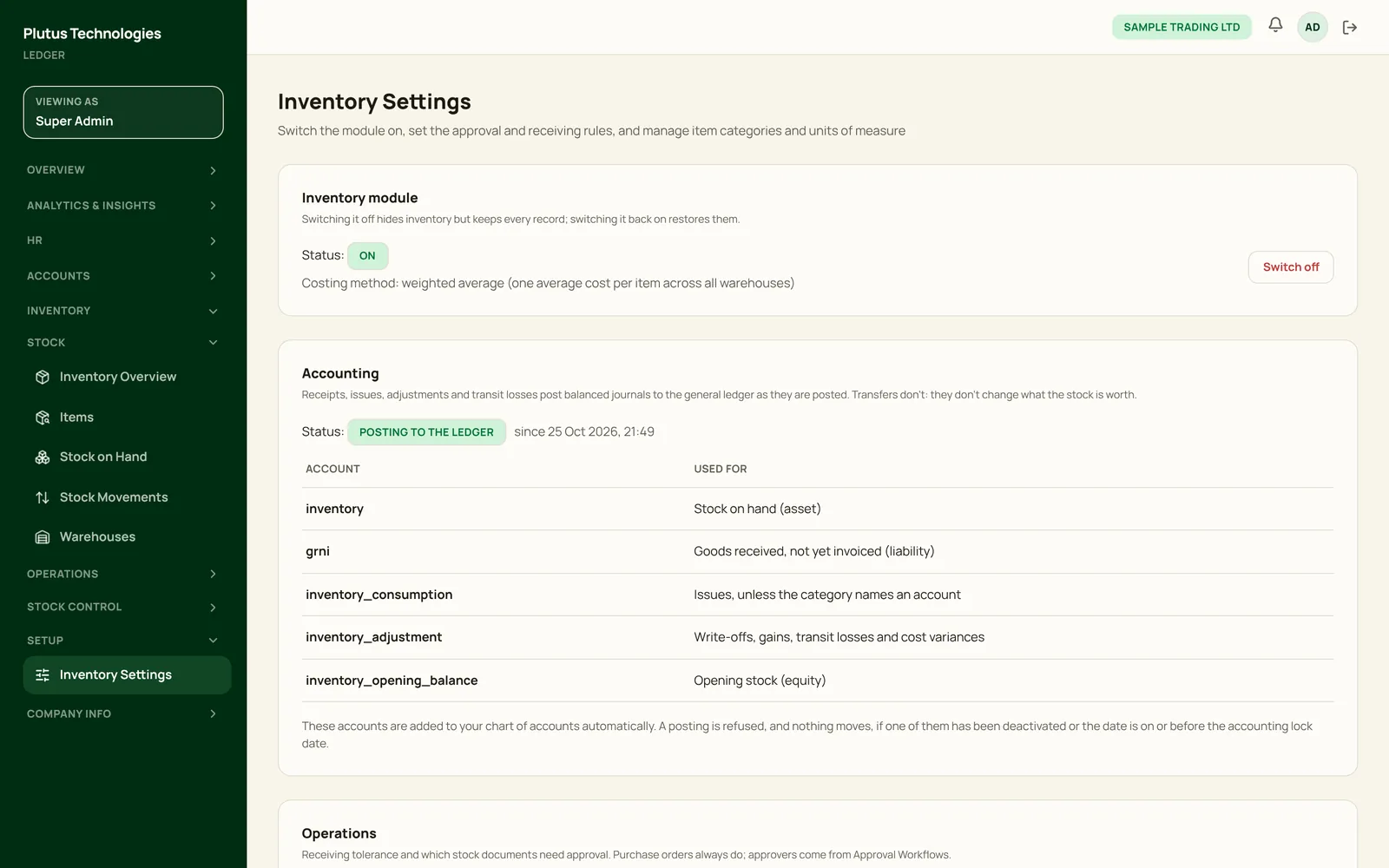
Switch on inventory
- In the app
- Inventory, then Setup, then Inventory Settings
- Who
- Super Admin
- Payroll Manager
- Accountant
- Choose Switch on.
- Under Operations, set the receiving tolerance, which documents need approval, and the limit above which stock gains need approval.
- Stock is valued at weighted-average cost: one average per item across all warehouses.
- Receipts, issues, adjustments and transit losses post balanced journals to the general ledger. Plutus adds the inventory accounts to your chart for you.
- Switching inventory off hides it but keeps every record.
 (opens full size in a new tab)
Items and warehouses
- In the app
- Inventory, then Stock, then Items
- Who
- Super Admin
- Payroll Manager
- Accountant
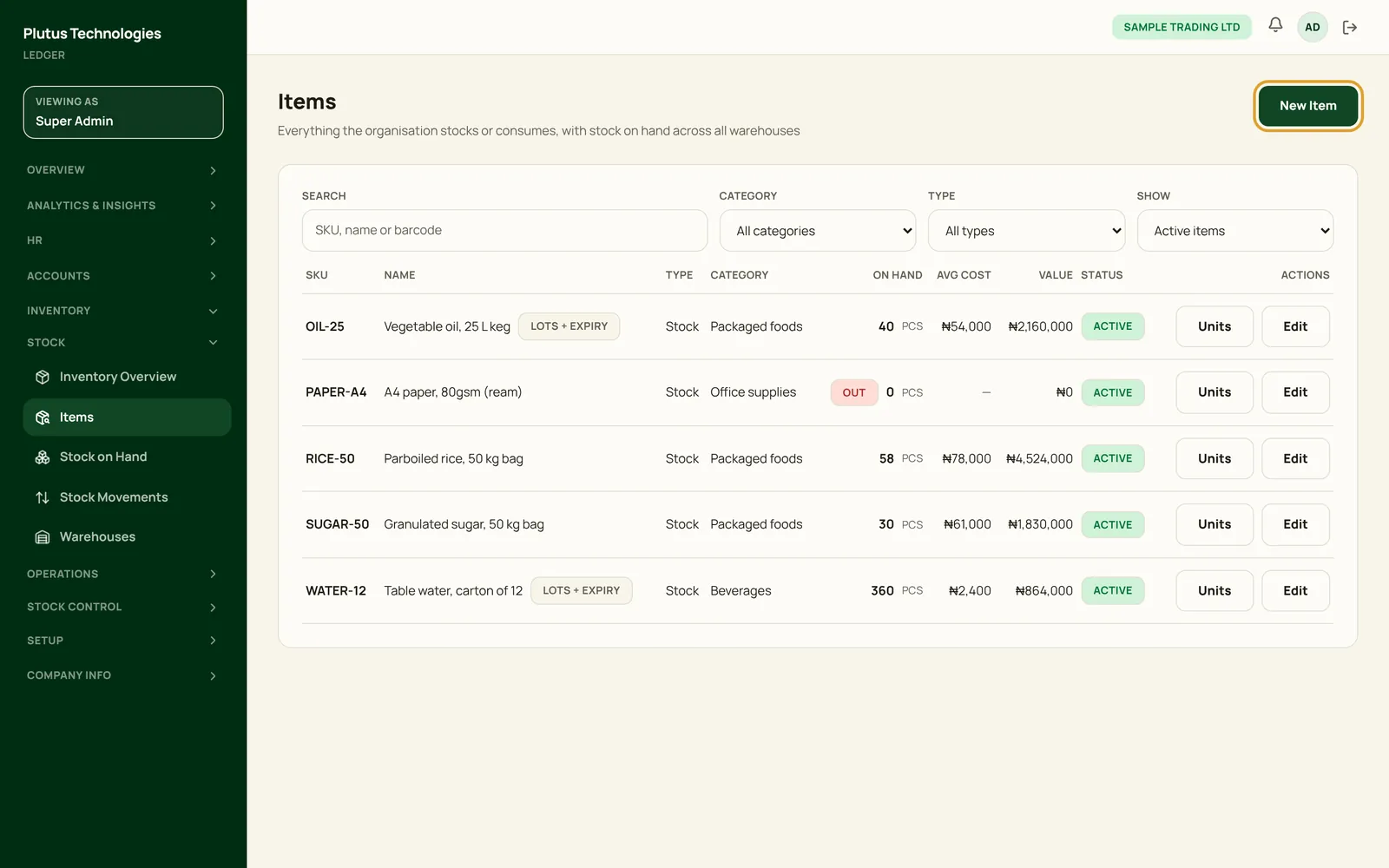
- Under Warehouses, choose New Warehouse and enter a code and a name. Add a branch and address if you like.
- Under Items, choose New Item. Enter the SKU, name, type, base unit and category.
- Set the reorder level, default cost and preferred vendor, and switch on lot and expiry tracking if you need it.
- Choose Units on an item to add alternative units, such as a box of 12.
 (opens full size in a new tab)
Raise a purchase order
- In the app
- Inventory, then Operations, then Purchase Orders
- Who
- Super Admin
- Payroll Manager
- Accountant
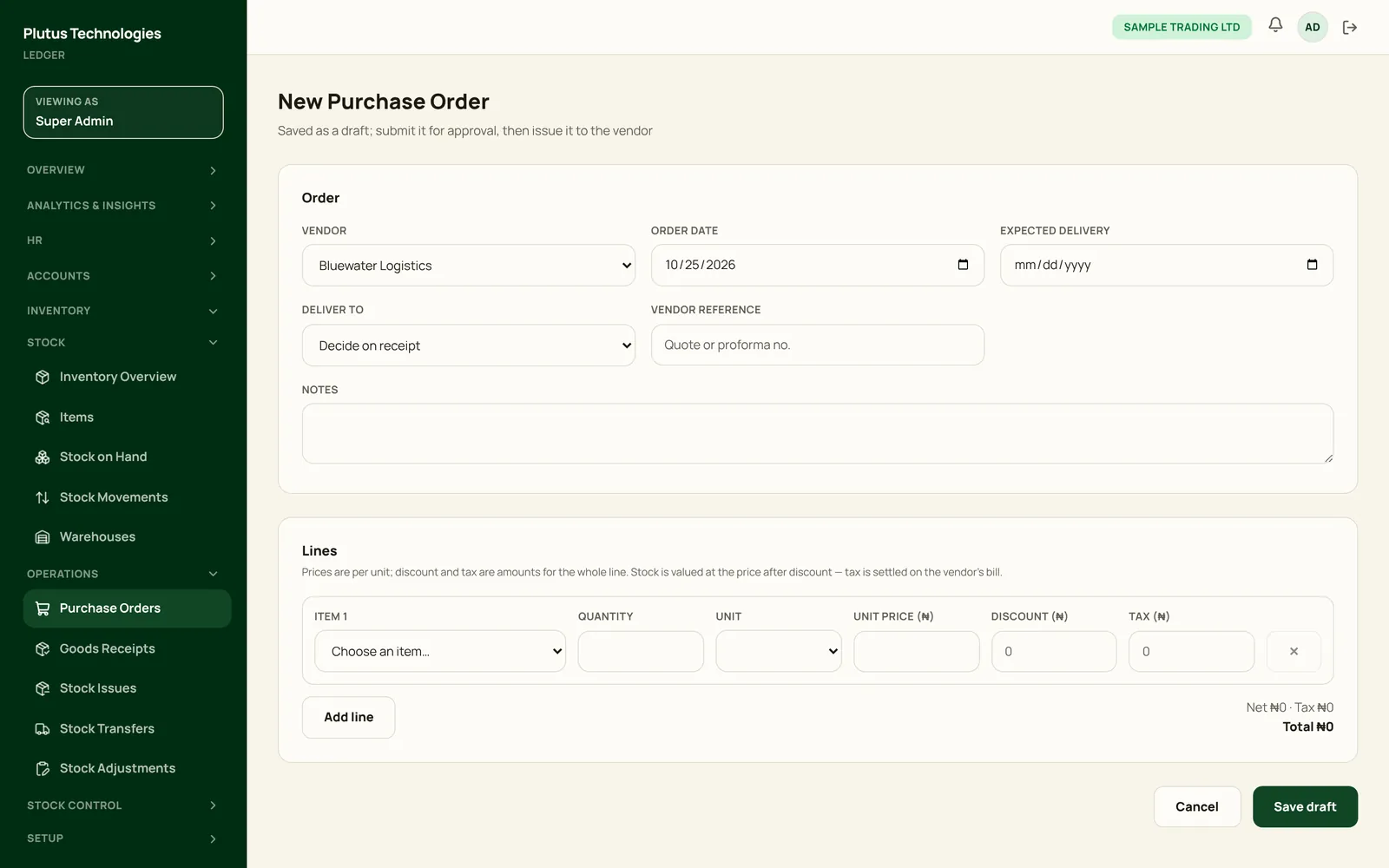
- Choose New Purchase Order. Pick the vendor and enter the order date, expected delivery and the warehouse to deliver to.
- Add a line for each item, with the quantity, unit, unit price, and any discount or tax.
- Choose Save draft, then Submit for approval.
- Once it is approved, choose Issue to vendor.
An order posts nothing to the ledger; it is a commitment. If the rest of an order will not arrive, choose Close short.
 (opens full size in a new tab)
Receive goods
- In the app
- Inventory, then Operations, then Purchase Orders
- Who
- Super Admin
- Payroll Manager
- Accountant
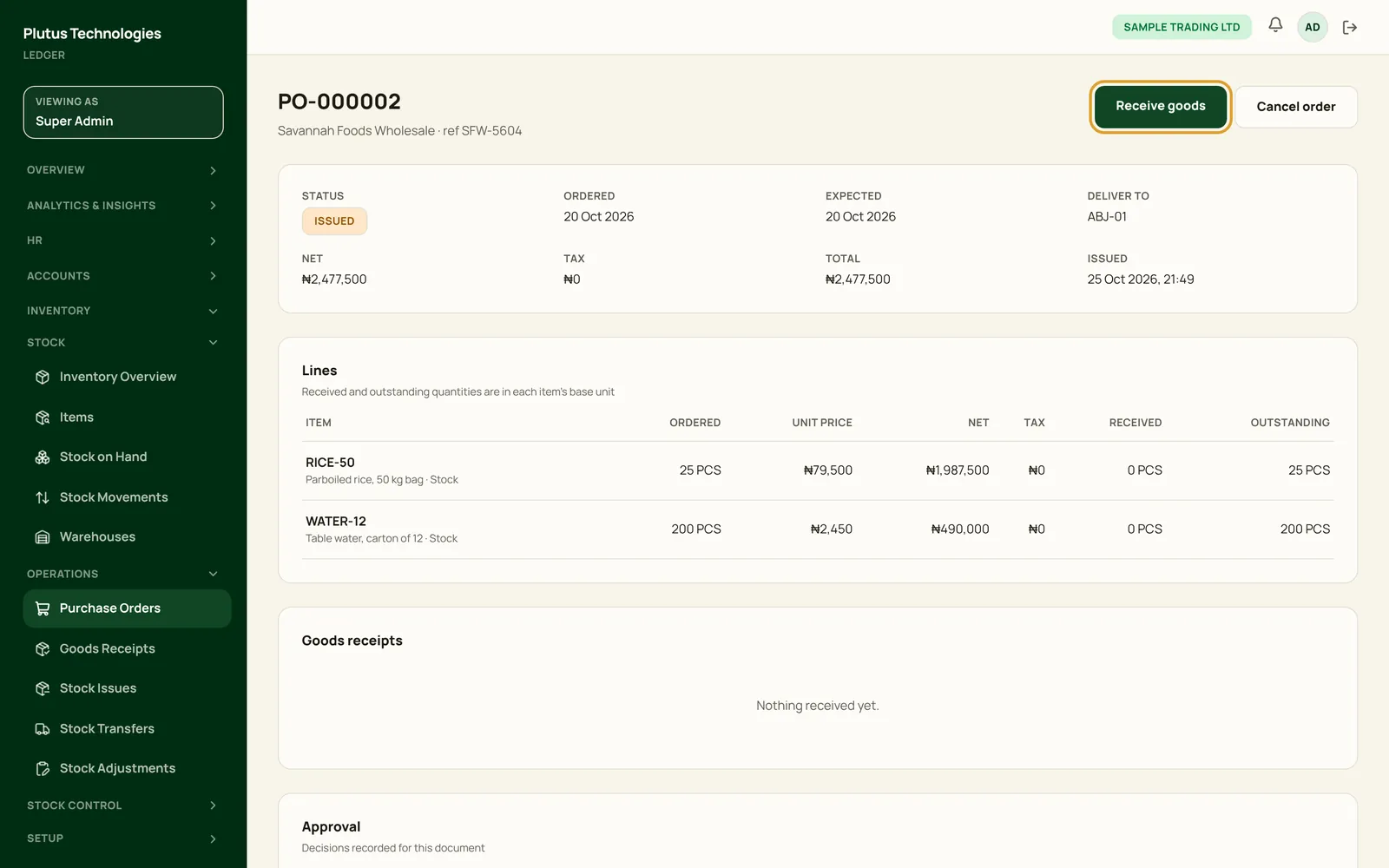
- Open the issued order and choose Receive goods.
- The quantities start at what is outstanding. Change them if less arrived, and give a reason for anything you reject.
- Enter the lot and expiry date for tracked items.
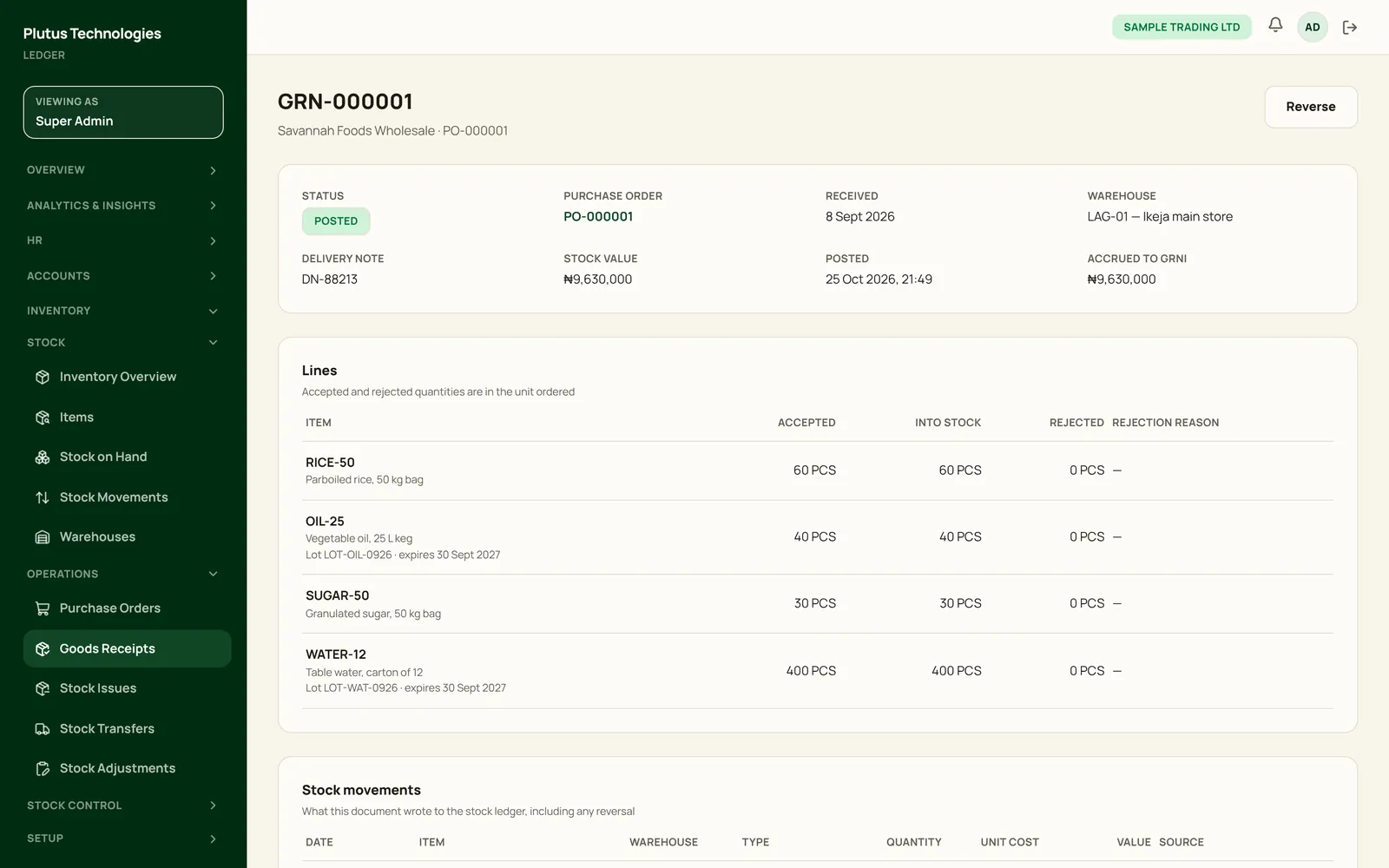
- Choose Save draft, then Post receipt. The stock goes into the warehouse, and its value is accrued as goods received not invoiced.
- When the vendor's bill arrives, record it and link it to the goods receipt. That clears the accrual.
 (opens full size in a new tab)
 (opens full size in a new tab)
Issue and transfer stock
- In the app
- Inventory, then Operations, then Stock Issues
- Who
- Super Admin
- Payroll Manager
- Accountant
- Department Manager
- To use stock, choose a new stock issue. Enter the warehouse, department and purpose, and the items and quantities.
- Choose Save draft, then Submit for approval. Once approved, choose Post issue. The stock leaves the warehouse and its cost goes to the category's expense account.
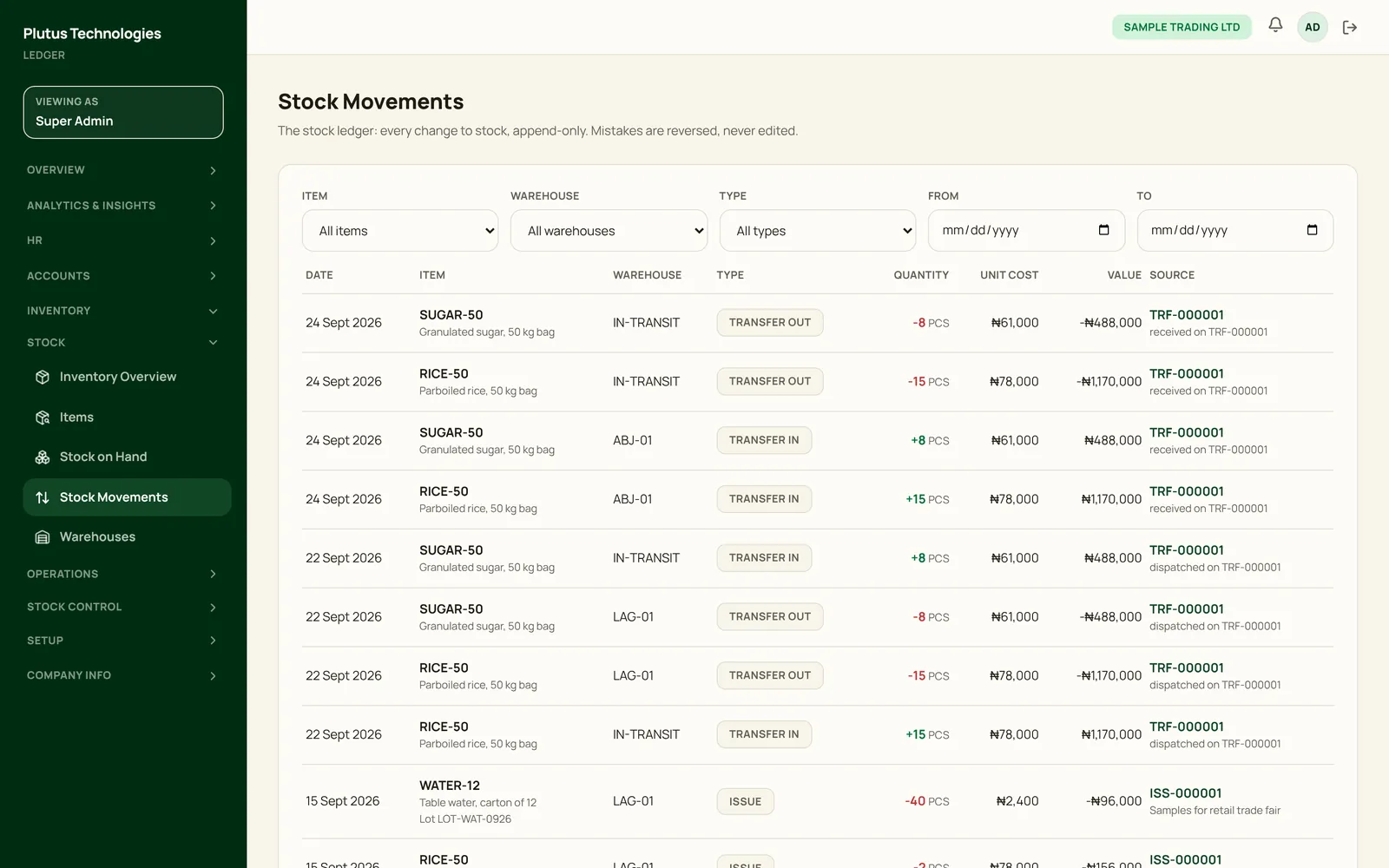
- To move stock between warehouses, create a transfer under Stock Transfers and save it. Once it is approved (if your settings ask for approval), choose Dispatch. The stock is in transit until the other warehouse receives it.
- At the destination, choose Receive at that warehouse and confirm the quantities. A shortfall needs a reason.
Department managers can request stock for the departments they head.
 (opens full size in a new tab)
Count stock and make adjustments
- In the app
- Inventory, then Stock Control, then Stocktakes
- Who
- Super Admin
- Payroll Manager
- Accountant
- Choose the warehouse and Create stocktake, then Start count. Plutus snapshots what it expects to find.
- Enter the counted quantities and save them, then choose Submit.
- After approval, choose Post. Differences post as gains or losses.
- For a one-off change, use Stock Adjustments with a reason: opening balance, found, damage, expiry, loss, write-off or correction.
Write-offs, and gains above the limit you set, need approval before they post.
Check stock and run reports
- In the app
- Inventory, then Stock, then Stock on Hand
- Who
- Super Admin
- Payroll Manager
- Accountant
- Auditor
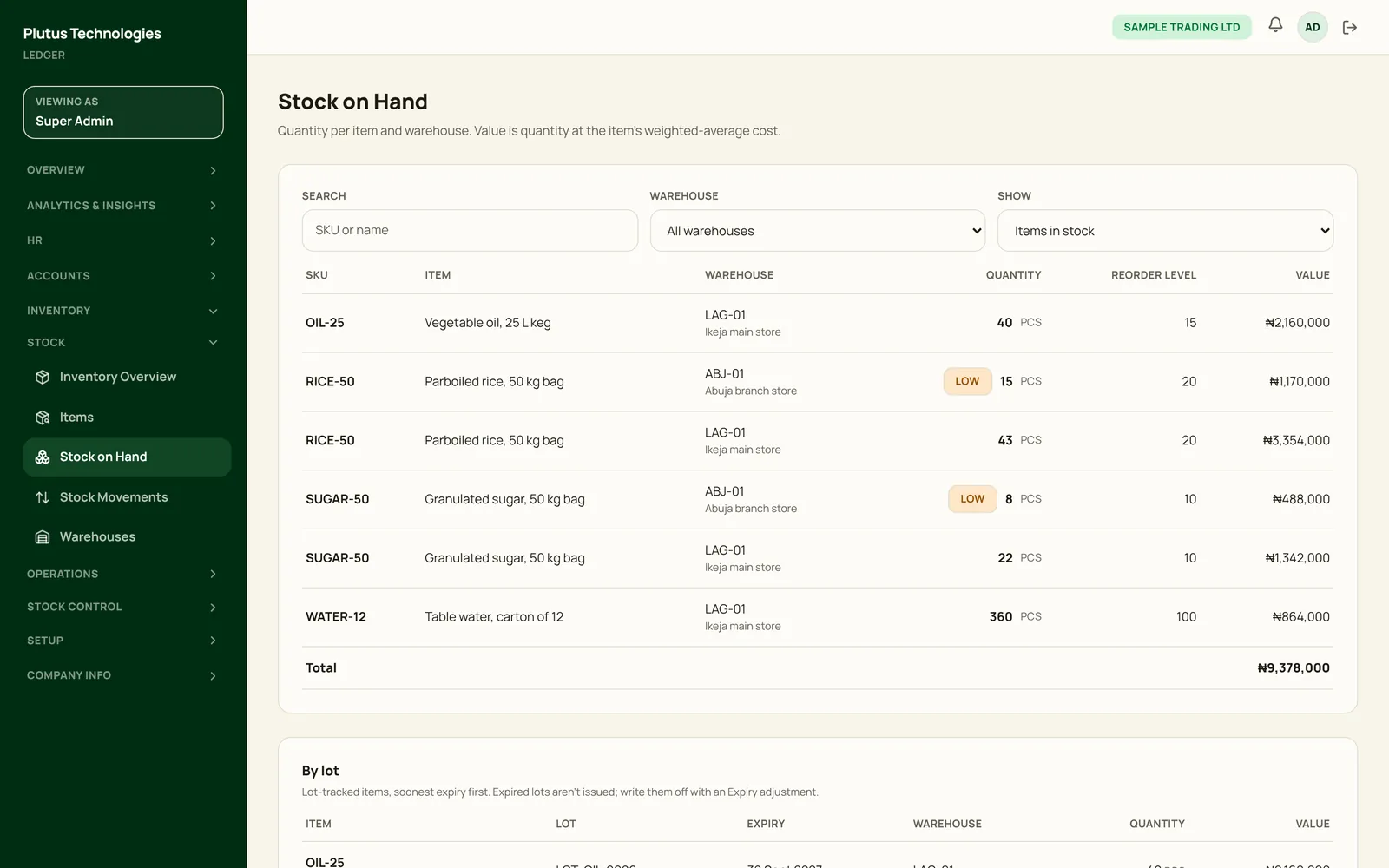
- Stock on Hand shows each item by warehouse, flags anything at or below its reorder level, and lists lots by expiry.
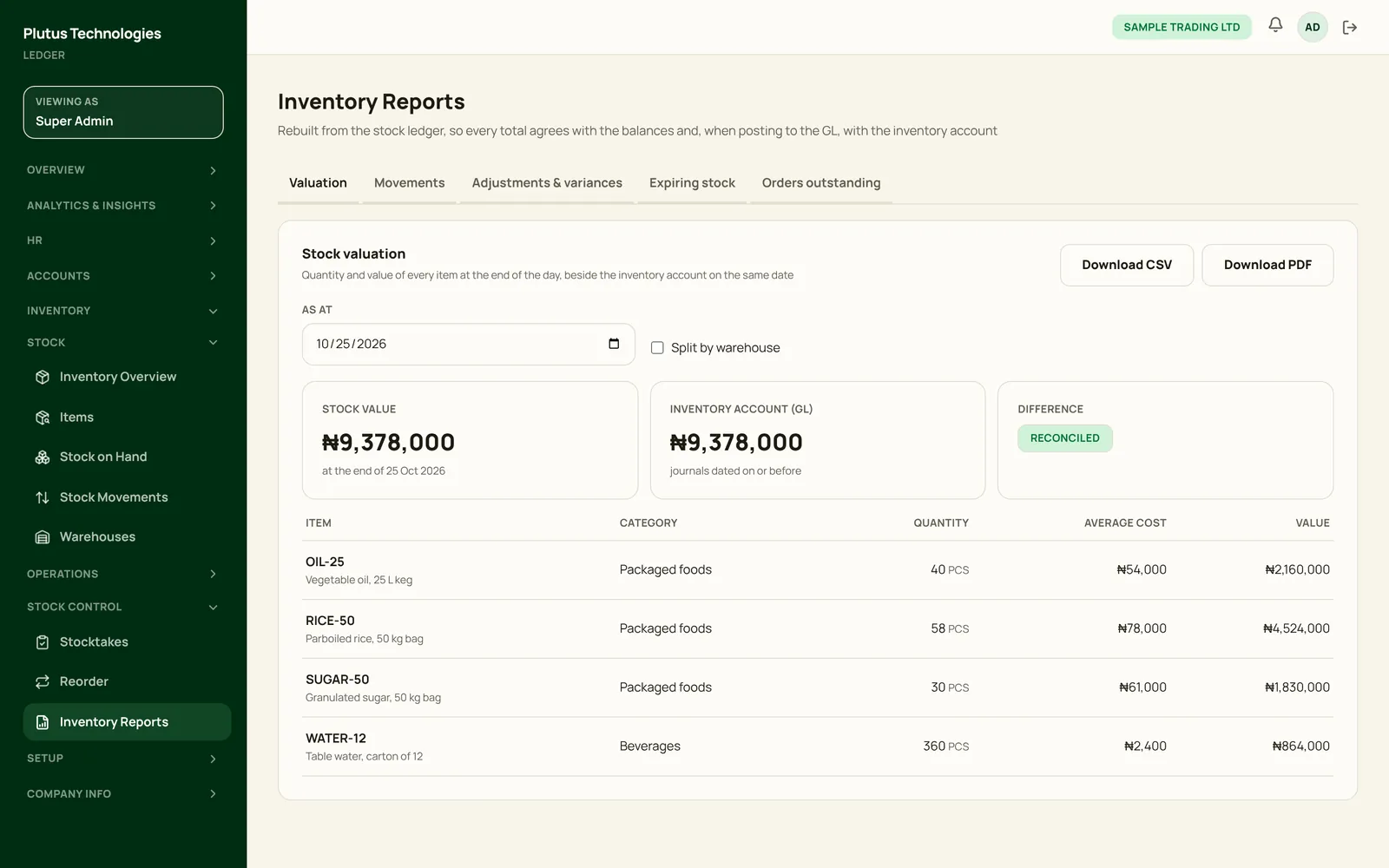
- Inventory Reports has valuation, movements, adjustments and variances, expiring stock, and orders outstanding. Each downloads as CSV or PDF.
- The valuation report puts the stock value beside the inventory account in the general ledger, with the difference.
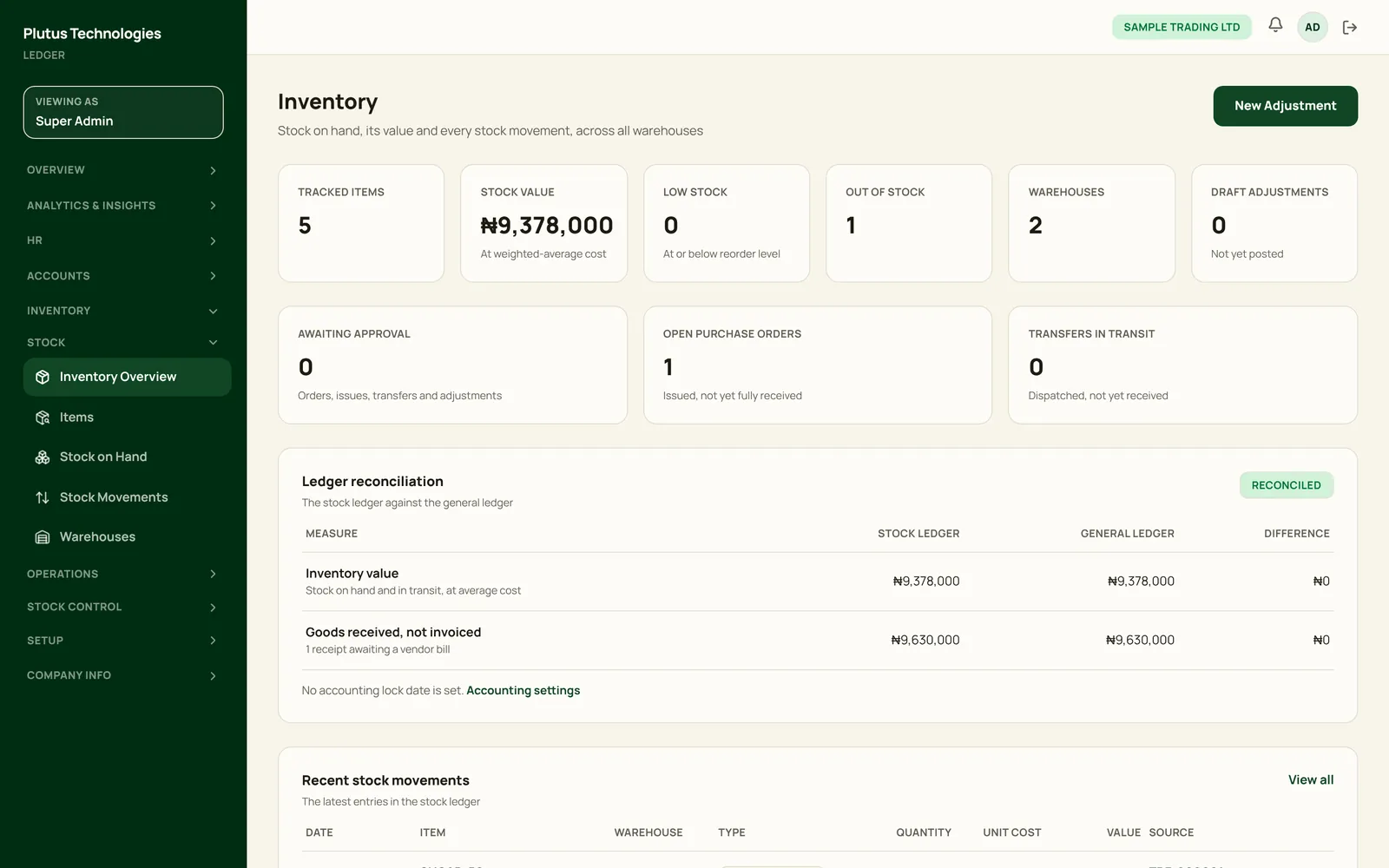
- Inventory Overview reconciles the stock ledger with the general ledger for stock value and goods received not invoiced.
 (opens full size in a new tab)
 (opens full size in a new tab)
 (opens full size in a new tab)